

Workflow email steps
Email steps send a message to your invitee or to you when a workflow runs.
Add an email step
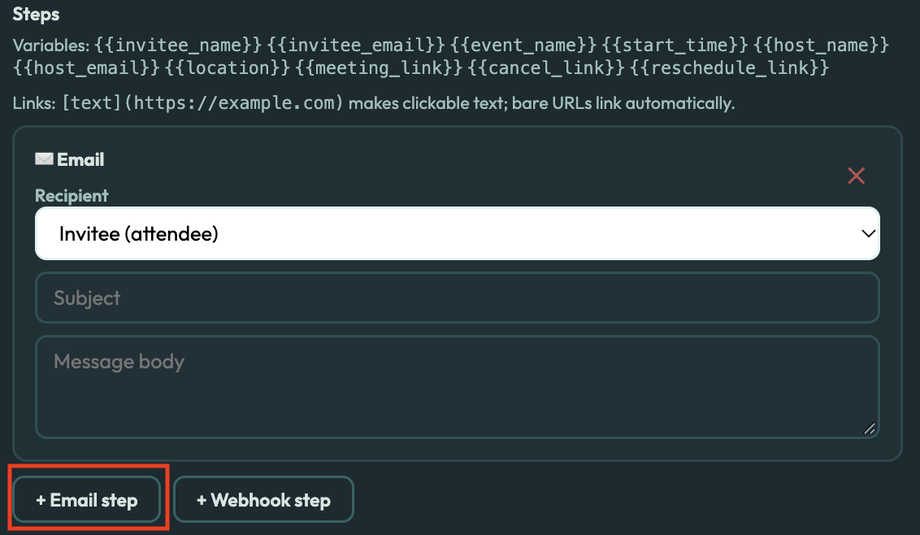
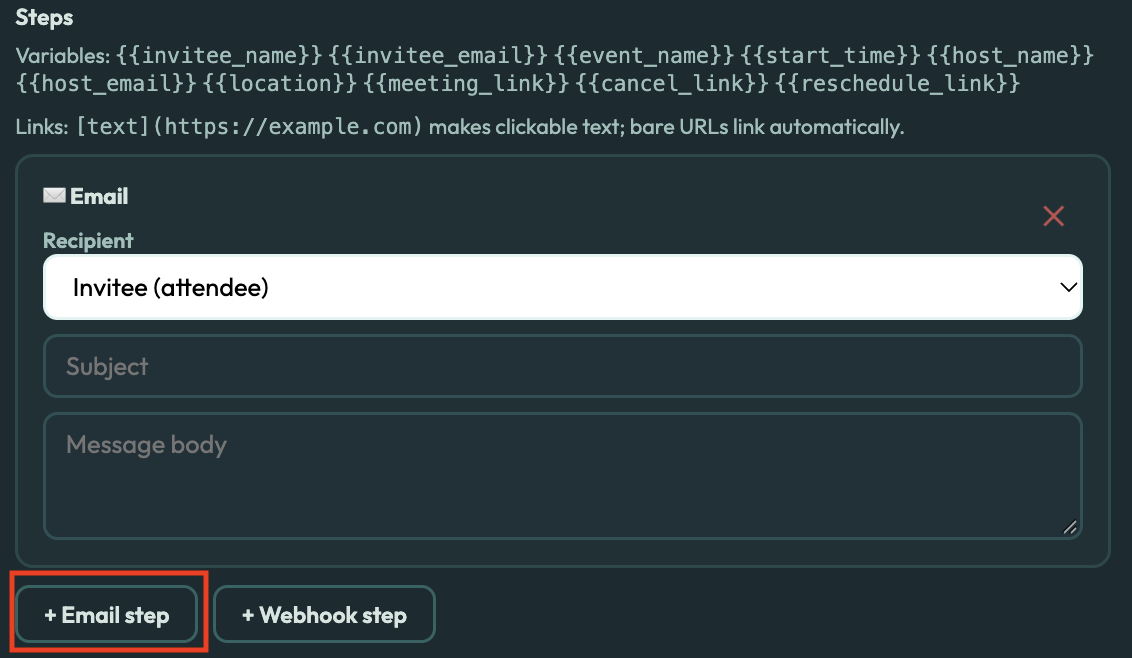
Open a workflow and select + Email step.
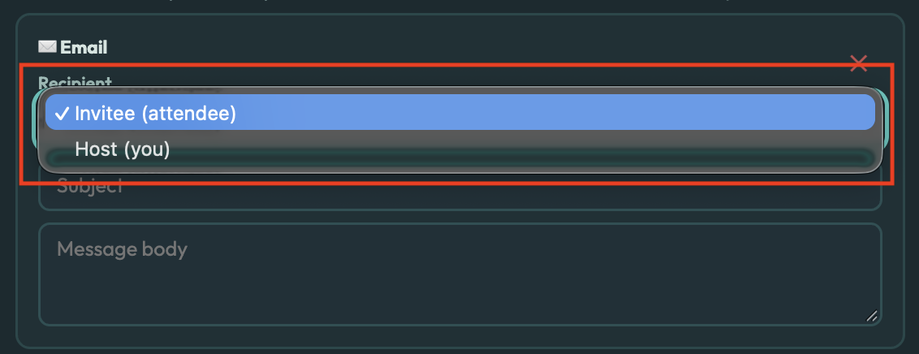
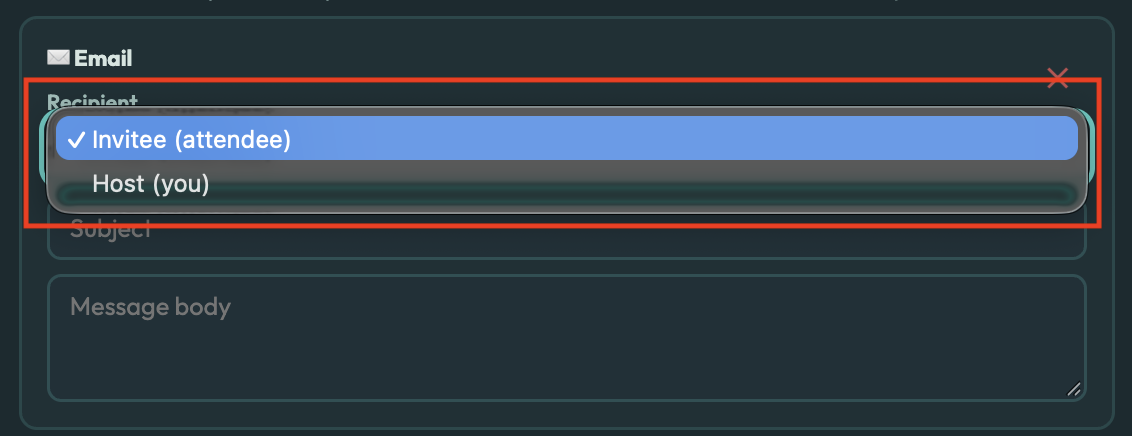
Choose the Recipient: the invitee, or you (the host).
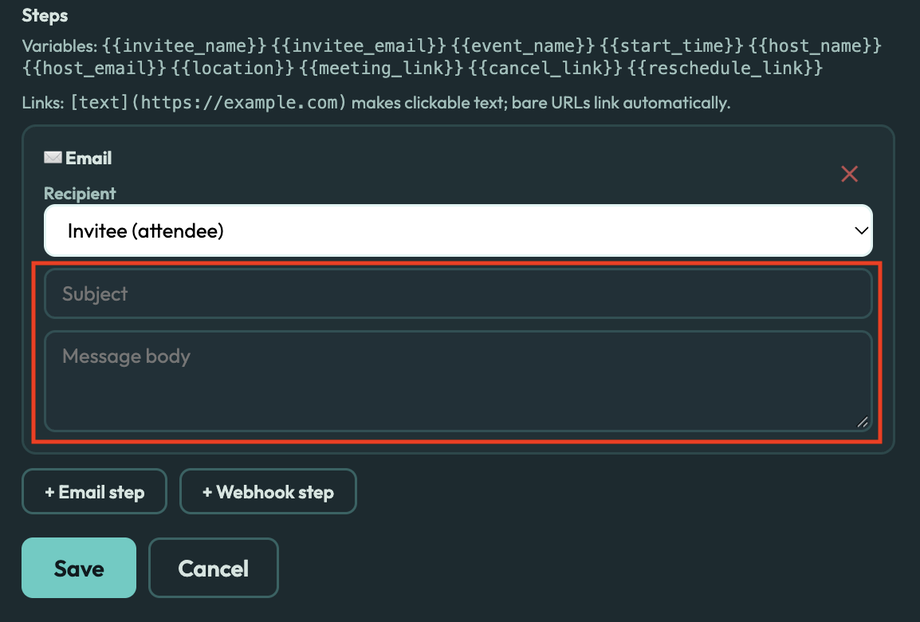
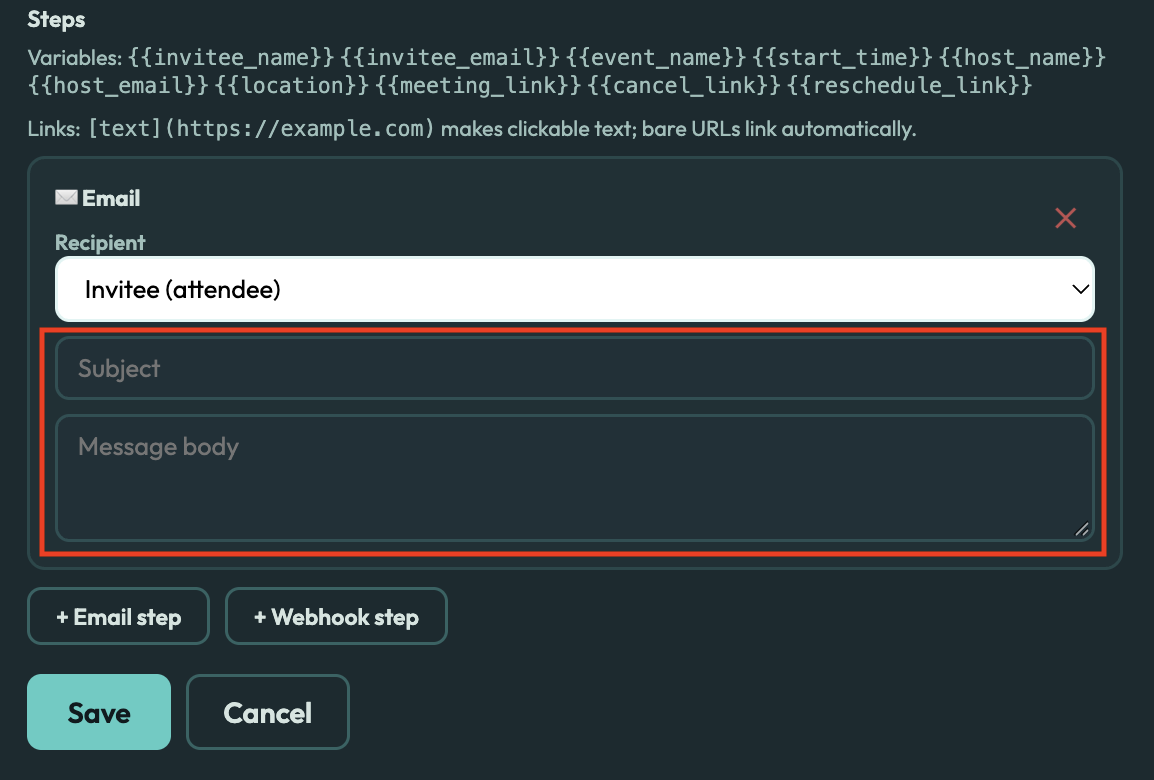
Enter a Subject and Message body.
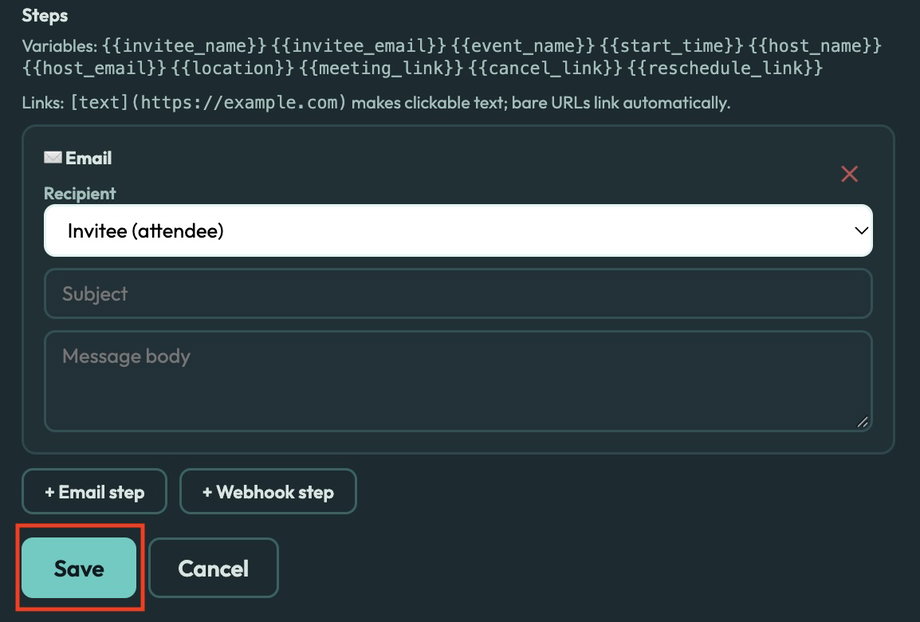
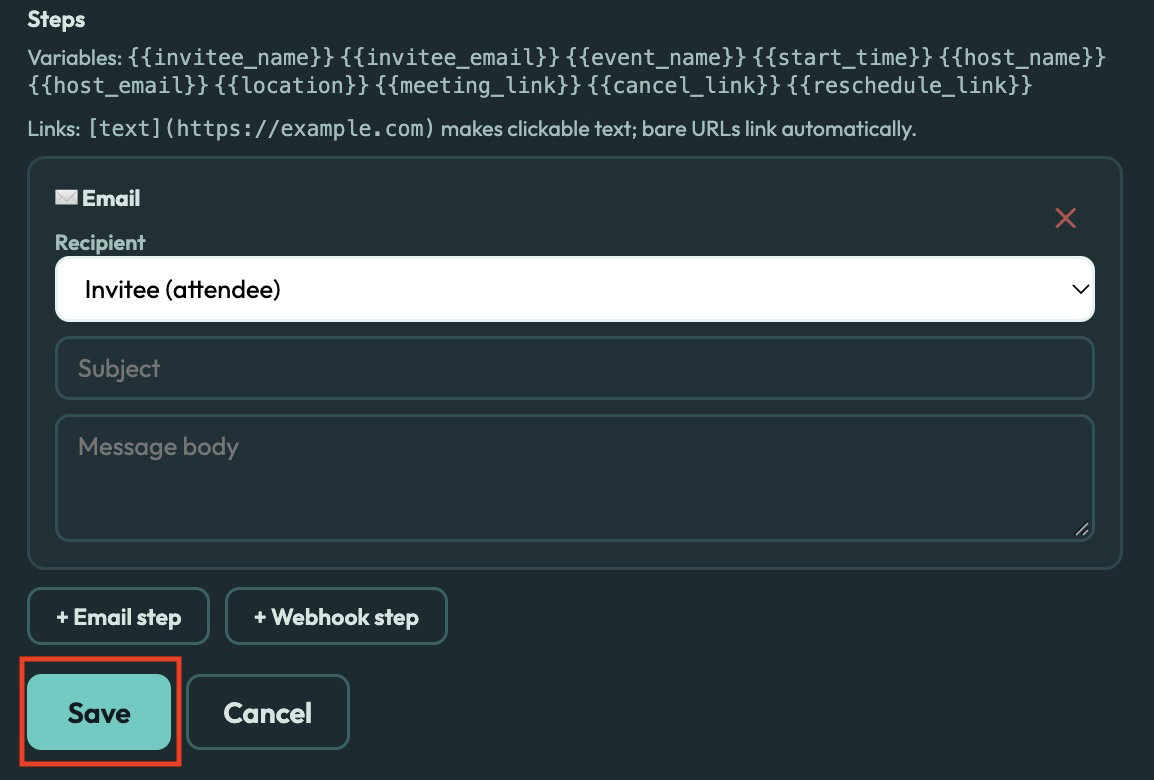
Select Save.
Emails come from your booking page's sender name. Replies go to your booking page's reply-to email, or your account email if you have not set one.
Personalize with variables
Type a variable in double curly braces and Multical fills it in for each booking.
Variable | What it shows |
|---|---|
| The invitee's name |
| The invitee's email address |
| Your booking page name |
| The session date and time |
| Your sender name |
| Your reply-to email |
| The address or meeting link |
| The video meeting link, if there is one |
| A link the invitee can use to cancel |
| A link the invitee can use to reschedule |
Add links
Write
[link text](https://example.com)to make clickable text.Web addresses that start with
https://become links automatically.
Example: pre-session prep email
Trigger: Before the event starts
Minutes: 1440 (1 day)
Recipient: Invitee
Subject: Getting ready for {{event_name}} tomorrow
Hi {{invitee_name}},
Looking forward to our session on {{start_time}}.
Before we meet, take a few minutes to think about what you most want to walk away with.
Where: {{location}}
Need a different time? Reschedule your session
See you soon, {{host_name}}
Example: follow-up email after the session
Trigger: After the event ends
Minutes: 60
Recipient: Invitee
Subject: Thanks for today, {{invitee_name}}
Hi {{invitee_name}},
Thank you for our {{event_name}} session. Reply to this email with any questions or reflections.
When you're ready for the next one, book another session.
{{host_name}}
Replace https://your-booking-link-here with your booking page link.