

Workflow webhook steps
A webhook step sends booking details to another app, like Zapier or Make, when a workflow runs. Use it when you want something to happen outside Multical, such as adding a row to a spreadsheet or updating your CRM.
Add a webhook step
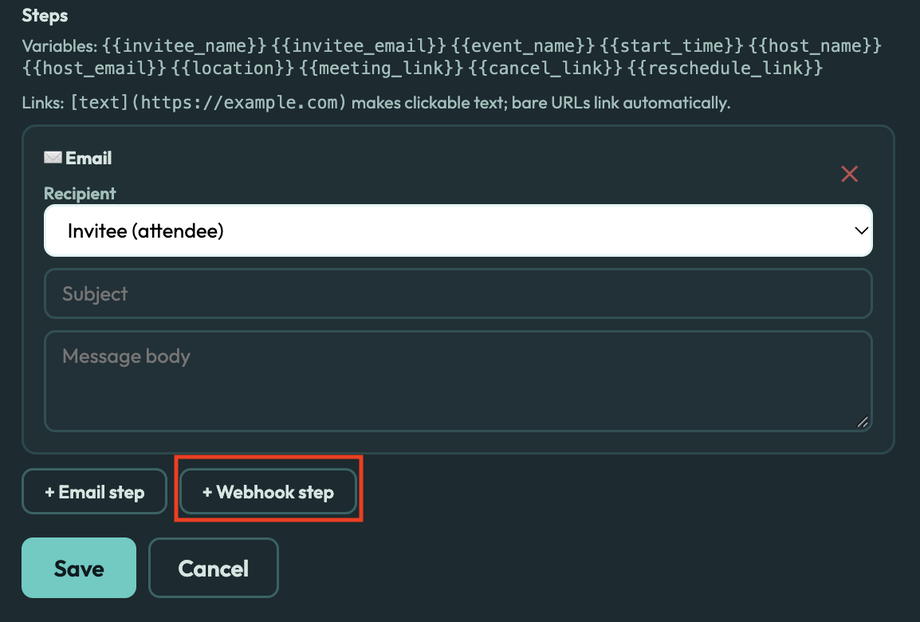
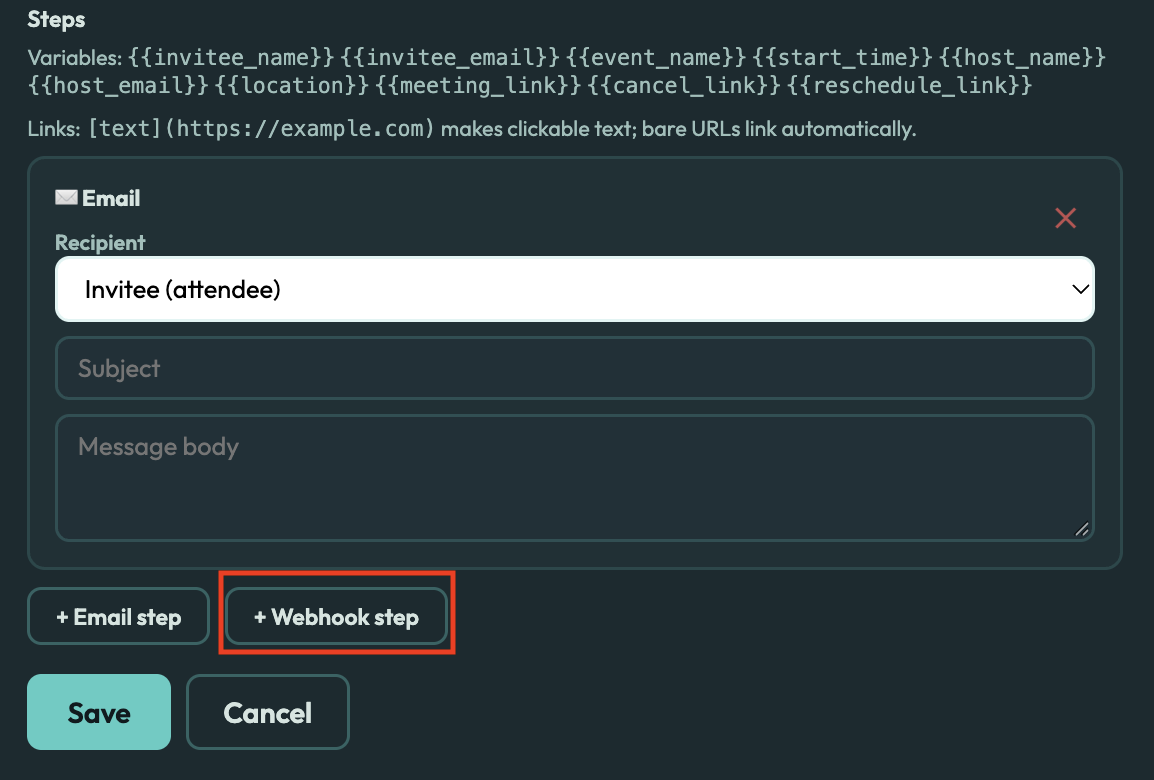
Open a workflow and select + Webhook step.
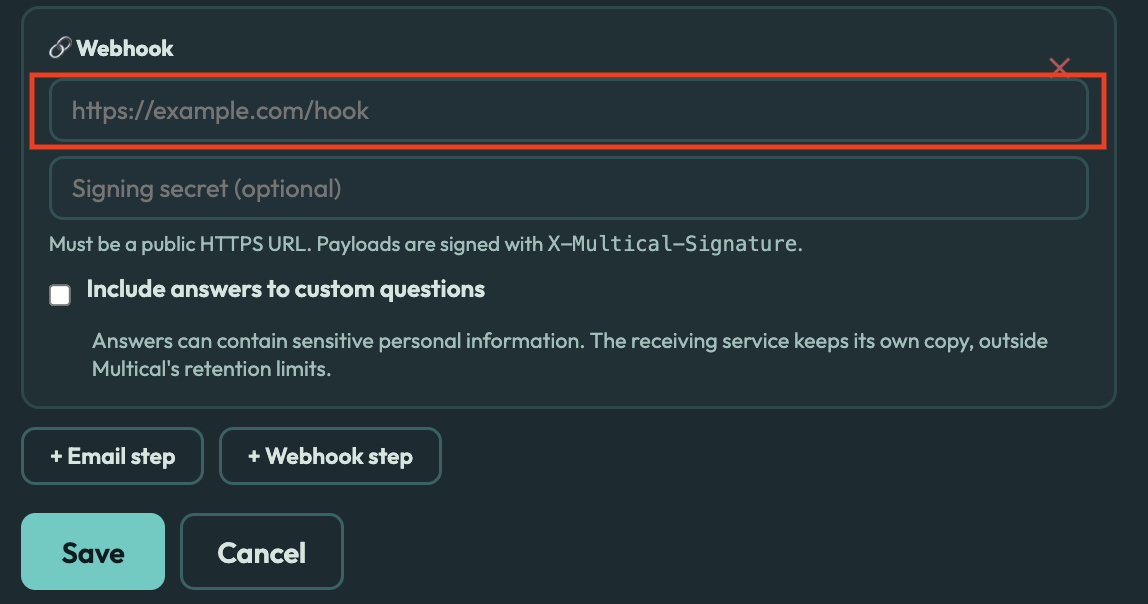
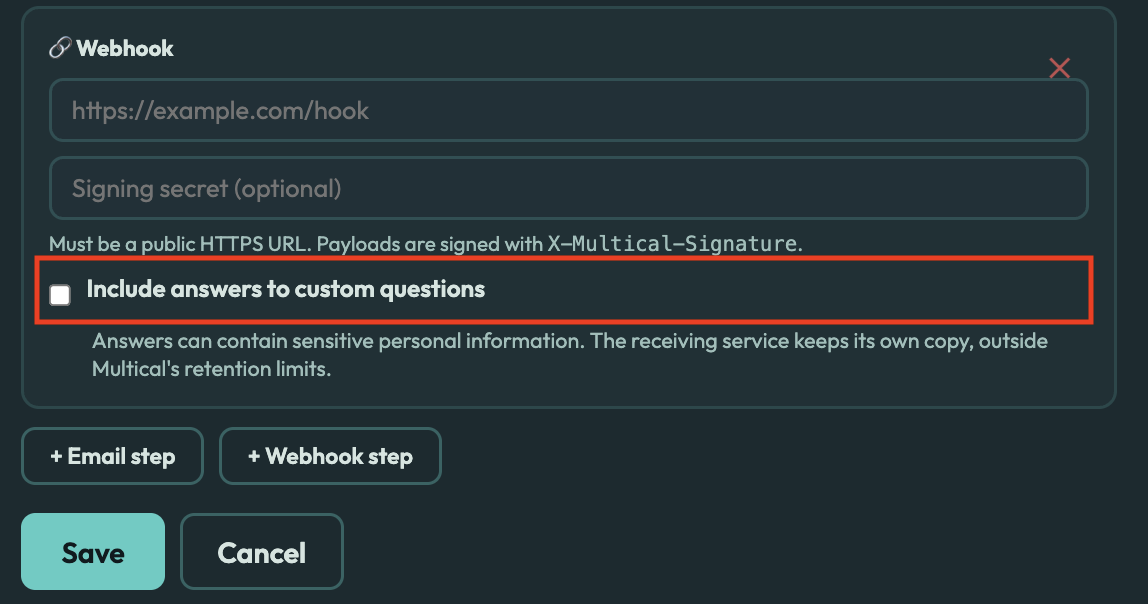
Paste the URL from the app that will receive the data. It must start with
https://and be publicly reachable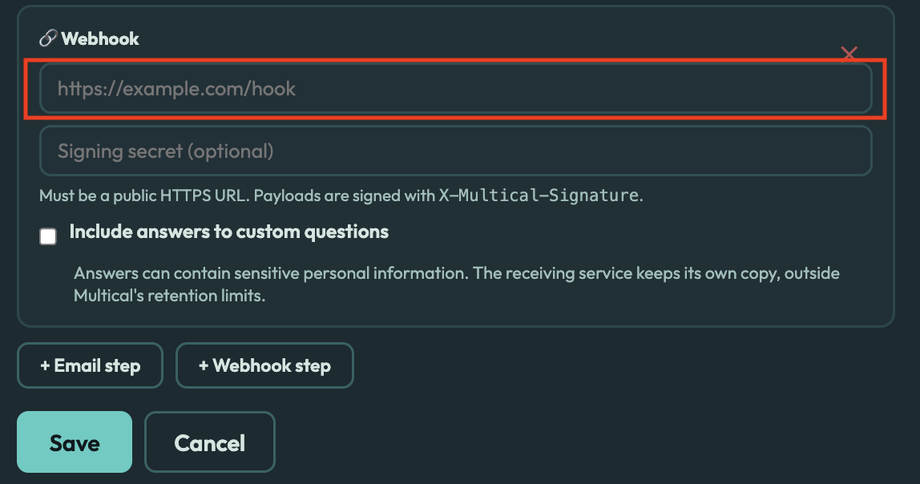
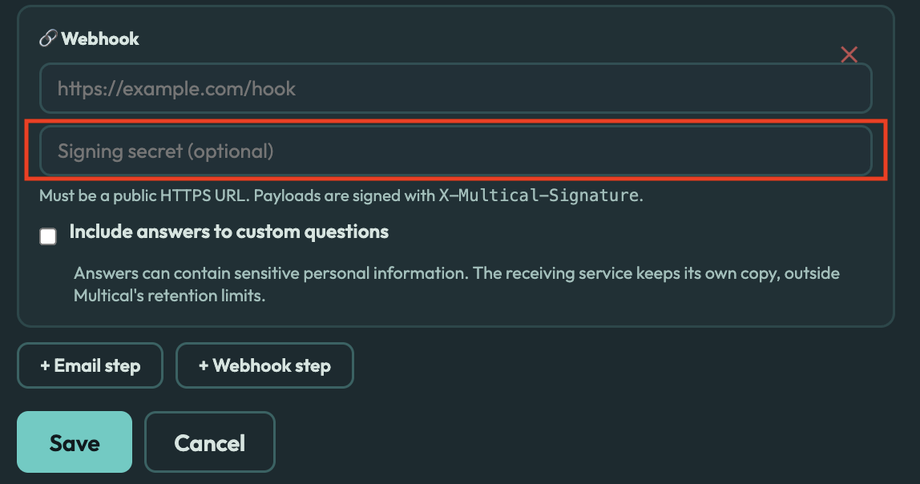
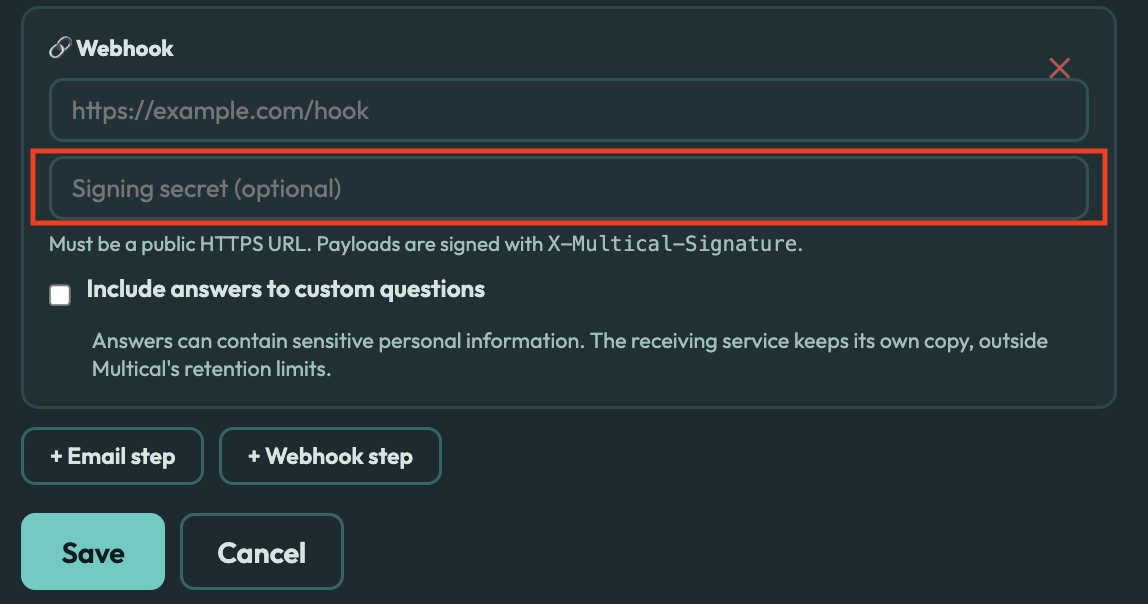
(Optional) Enter a Signing secret. Some apps use this to confirm the data came from Multical. If you're using Zapier or Make, you can leave it blank. After saving, the secret is hidden. Leave the field blank when editing to keep the current one.
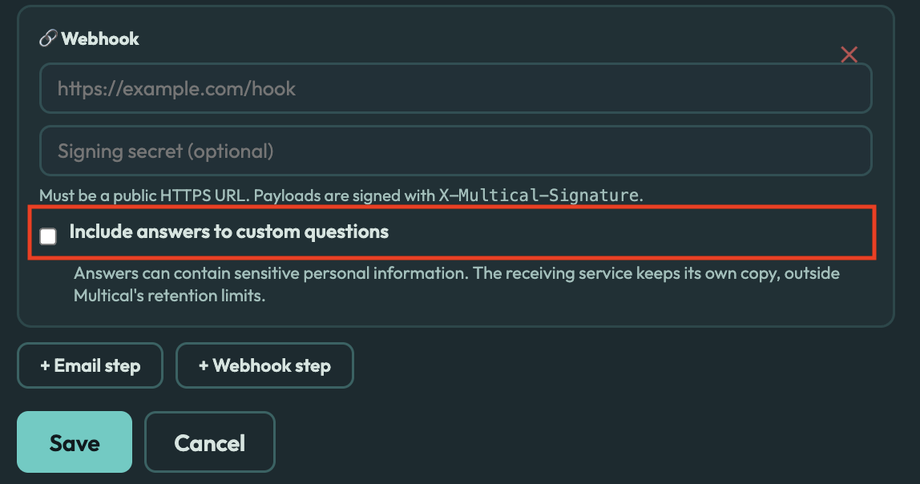
(Optional) Check Include answers to custom questions to send your booking form answers too. See Custom question answers section below.
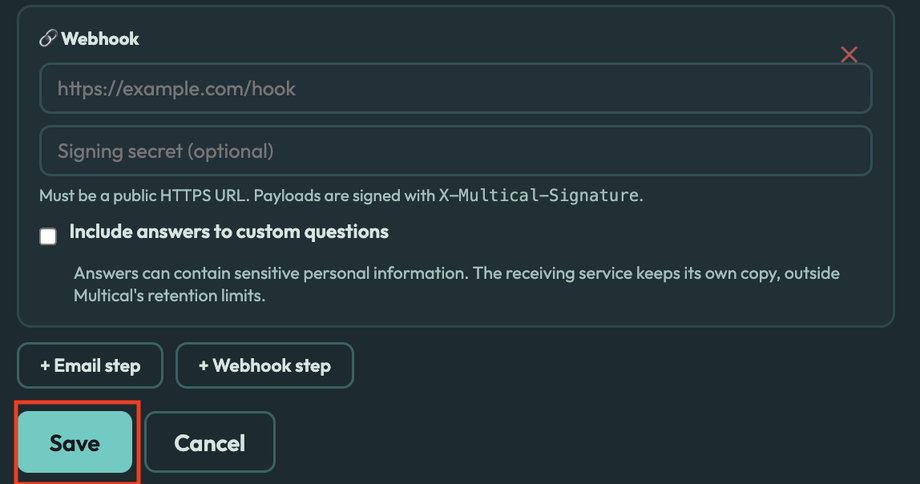
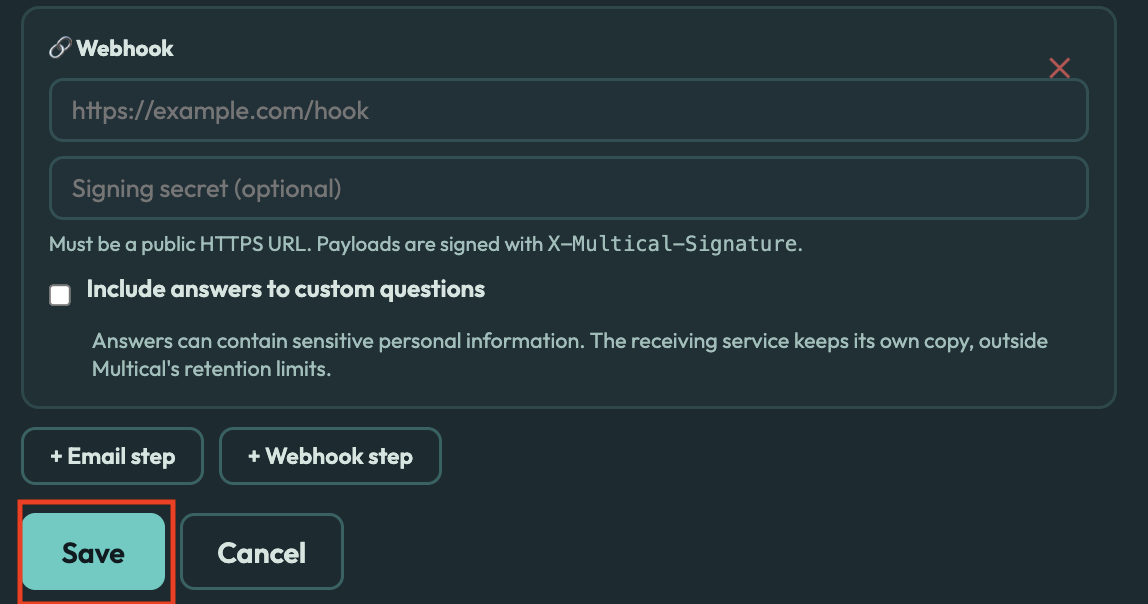
Select Save.
What Multical sends
Multical sends booking details in a format called JSON. Apps like Zapier and Make read it for you, so you can pick the fields you need. Here's an example:
{ "event": "booking_created", "occurred_at": "2026-10-08T15:00:00.000Z", "booking": { "id": "a1b2c3d4-...", "attendee_name": "Jordan Lee", "start_time": "2026-10-15T16:00:00.000Z", "end_time": "2026-10-15T17:00:00.000Z", "timezone": "America/Chicago", "status": "confirmed", "meeting_link": "https://zoom.us/j/123456789", "location_choice": "virtual", "custom_answers": [ { "question": "What would you like to focus on?", "answer": "Career transition planning" } ] }, "profile": { "name": "Coaching Session", "url_slug": "coaching" }}The event value matches the trigger: booking_created, before_event, after_event, cancelled, rescheduled, or no_show.
Custom question answers
Answers to your booking form questions are only sent when you check Include answers to custom questions on that webhook step. They appear in custom_answers as a list of questions and answers.
Before you turn this on, keep in mind:
Answers can contain sensitive personal information.
The receiving app keeps its own copy. Multical's data retention limits do not apply to it.
Connect to Zapier
Create a new Zap.
For the trigger, choose Webhooks by Zapier, then Catch Hook. (Webhooks by Zapier may require a paid Zapier plan.)
Copy the webhook URL Zapier gives you.
In Multical, create a workflow with the trigger you want and add a Webhook step with that URL. Save.
Make a test booking on your booking page so Zapier receives sample data.
Back in Zapier, test the trigger, then add your actions (Google Sheets, your CRM, and so on).
Connect to Make
Create a new scenario.
Add the Webhooks module, then Custom webhook, and create a new webhook.
Copy the URL Make gives you.
In Multical, add a Webhook step with that URL and save.
Make a test booking so Make can learn the data structure.
Add the modules you want to run next.
If a webhook fails
If the receiving app does not respond with success within 10 seconds, Multical tries again up to 5 times, waiting longer each time. Earlier steps in the workflow that already worked are not repeated.
Troubleshooting
"Webhook URL must use https": Use a URL that starts with
https://."Webhook URL resolves to a private address": The URL must be reachable on the public internet. Local or internal network addresses are not allowed.
No custom answers in the data: Check that Include answers to custom questions is turned on for that webhook step, and that the booking form has custom questions.
A workflow did not run for an older booking: Workflows only apply to bookings made after the workflow was turned on.