
Prefer video? We’ve got you.
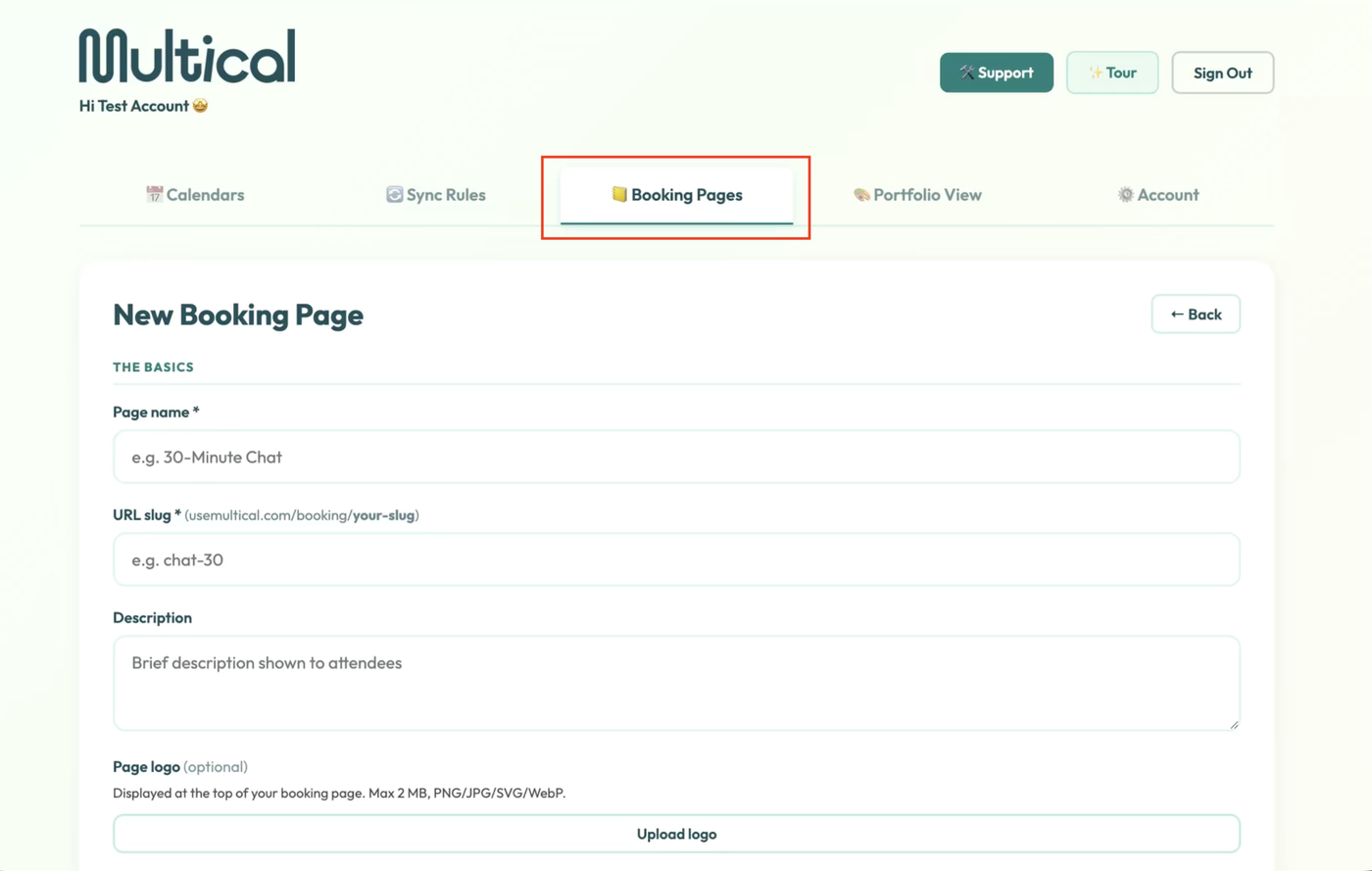
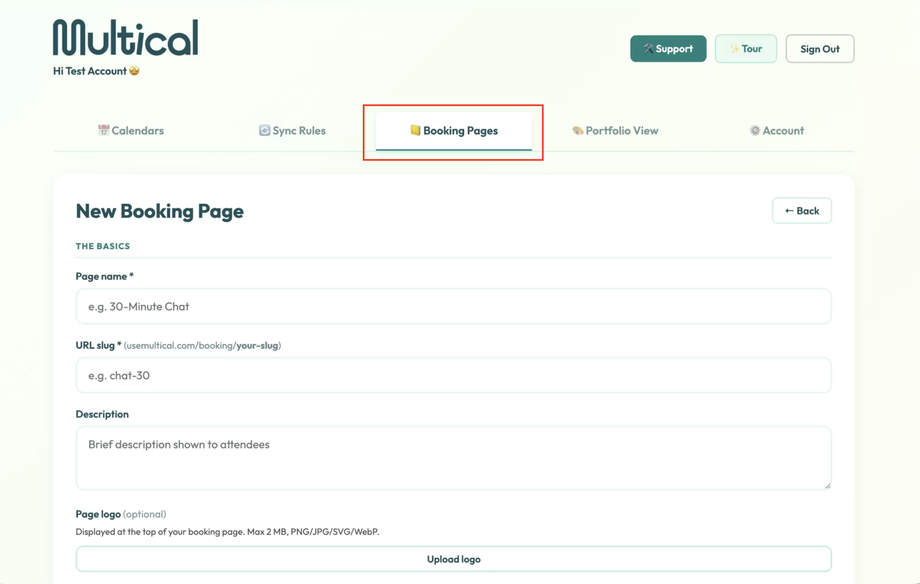
Navigate to the Booking Pages tab
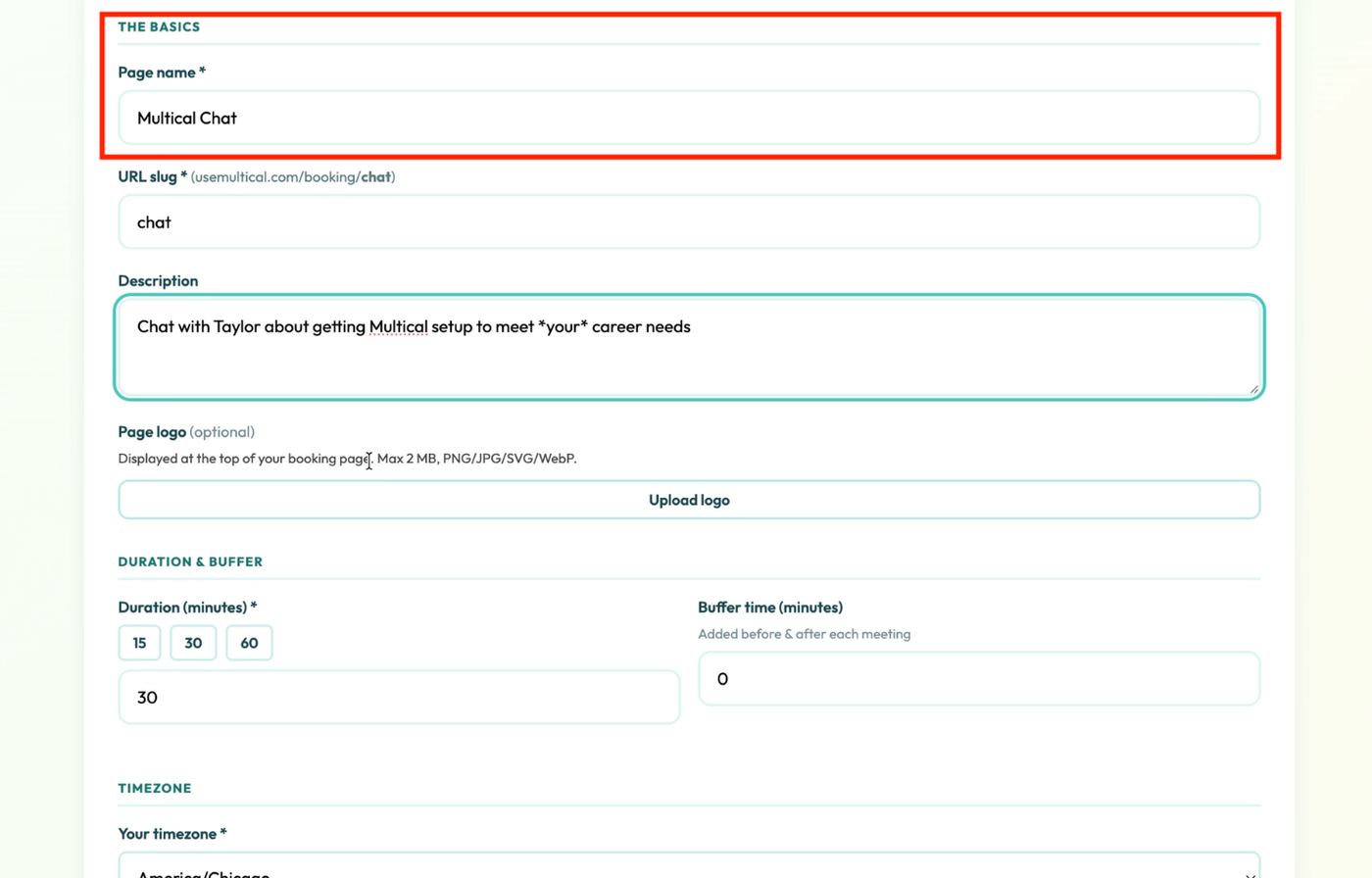
Name your booking page. The name will be viewable to anyone who visits your booking page
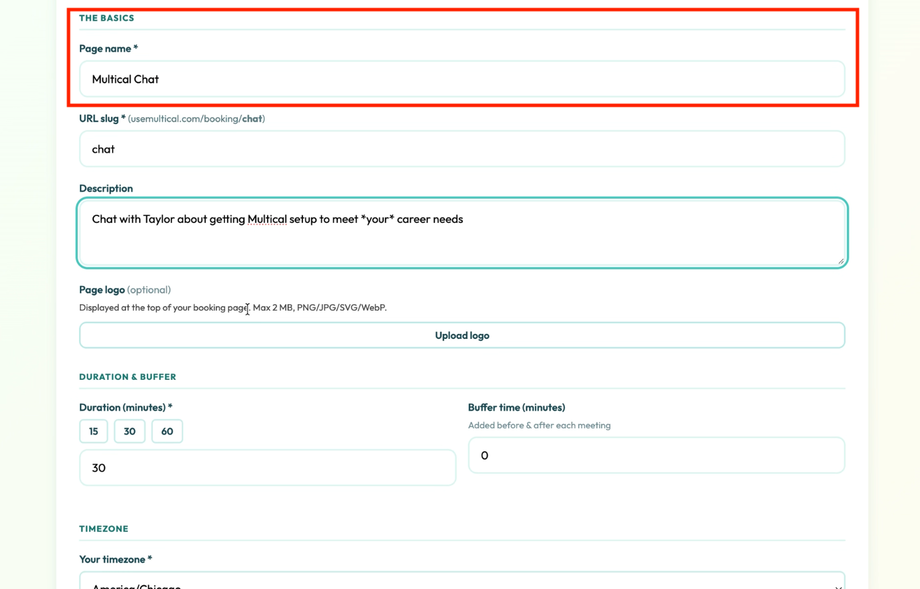
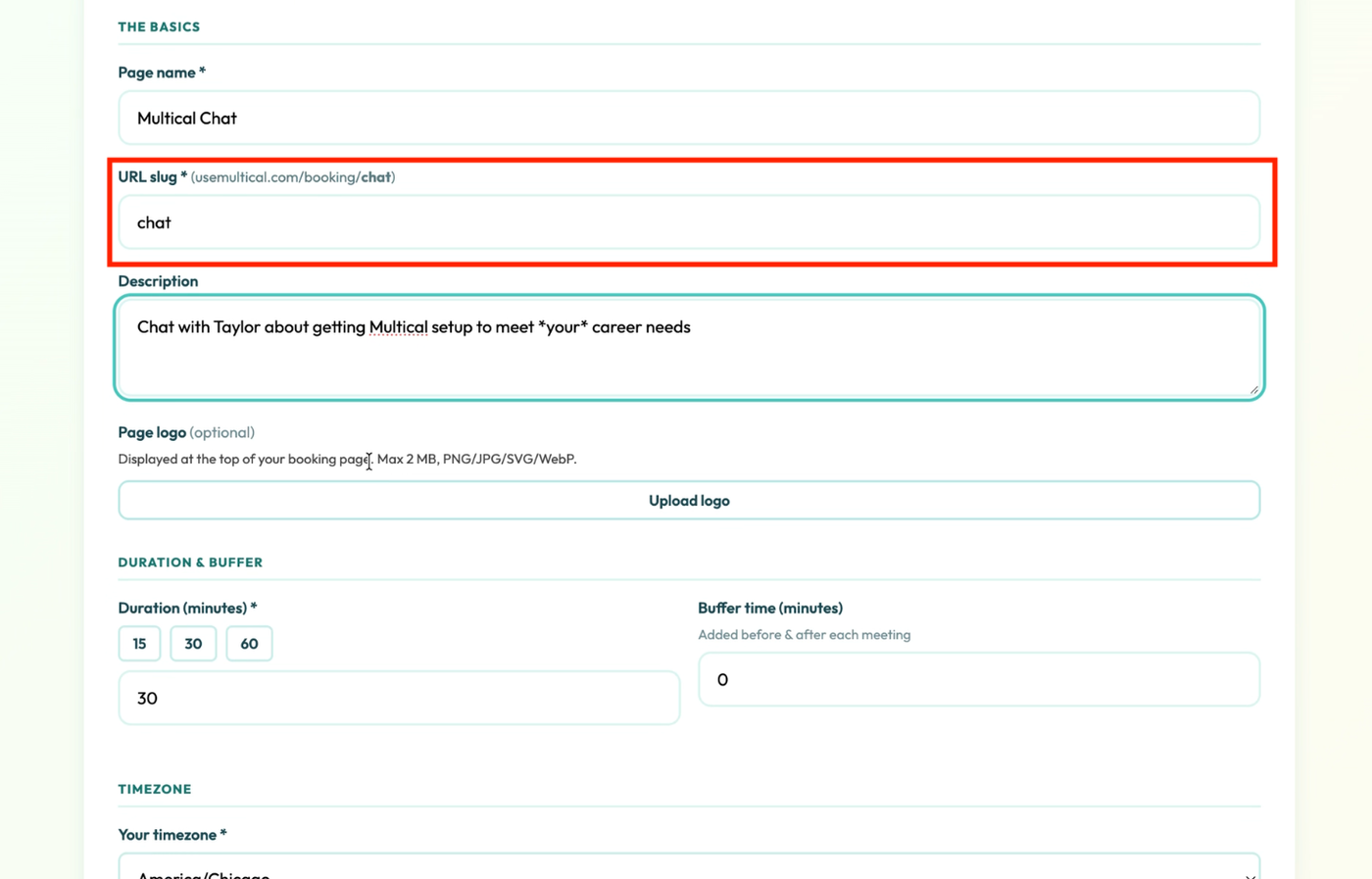
(Optional) Update your URL slug
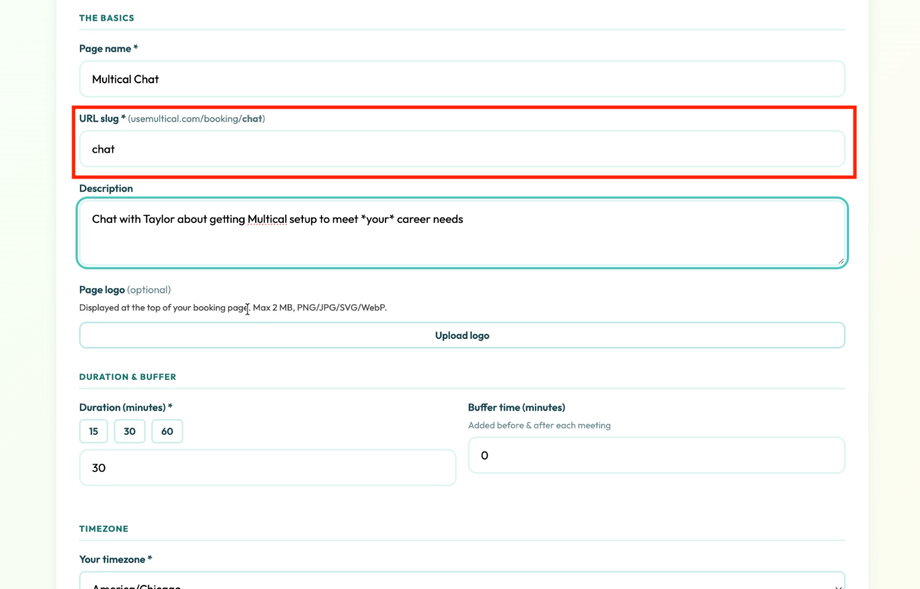
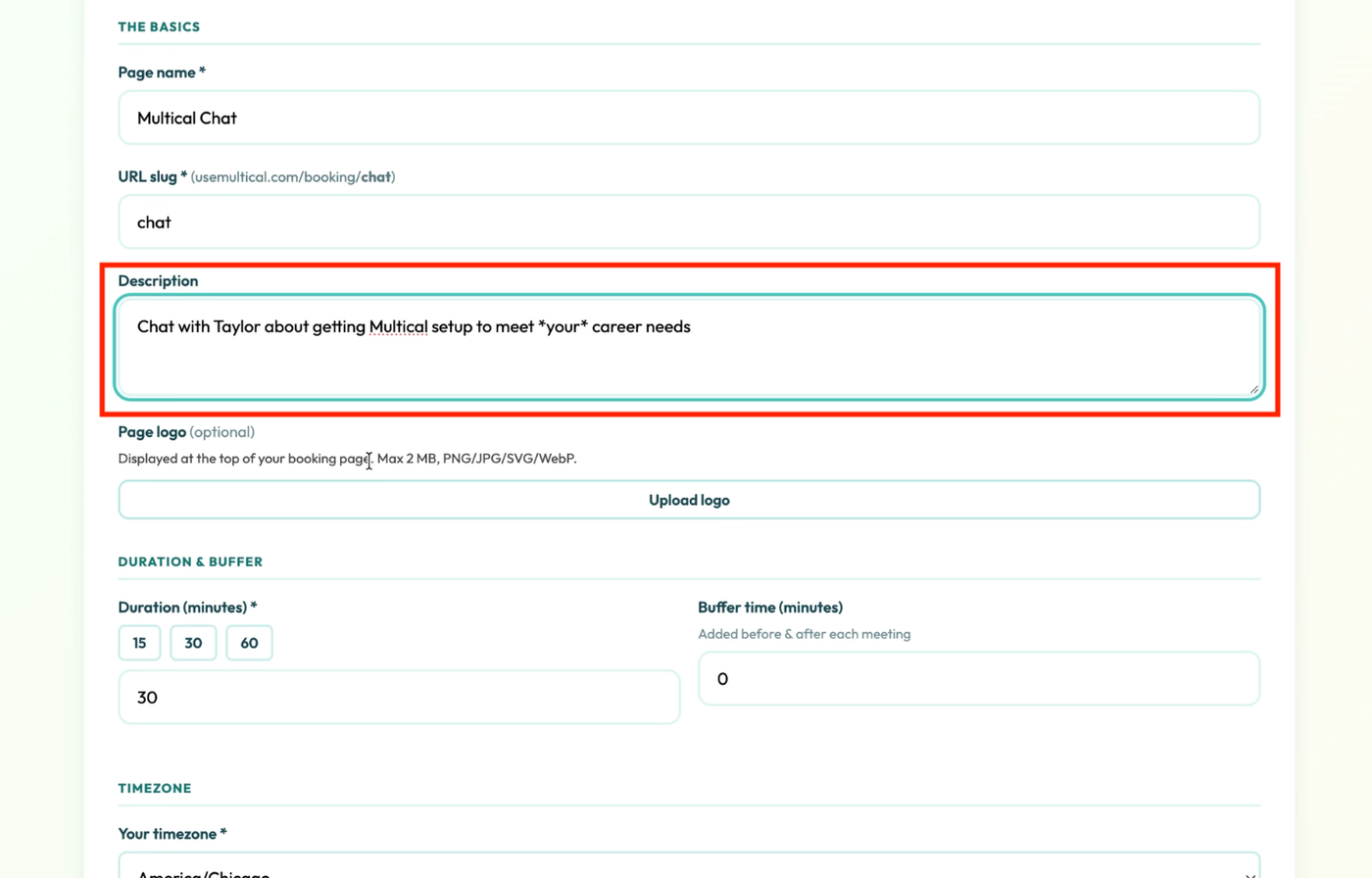
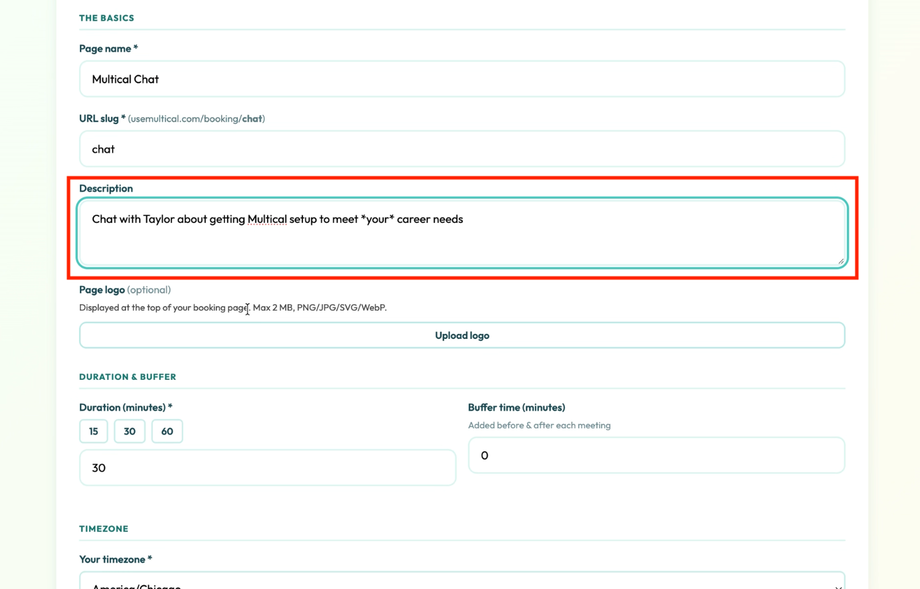
(Optional) Add a description for people viewing your booking page
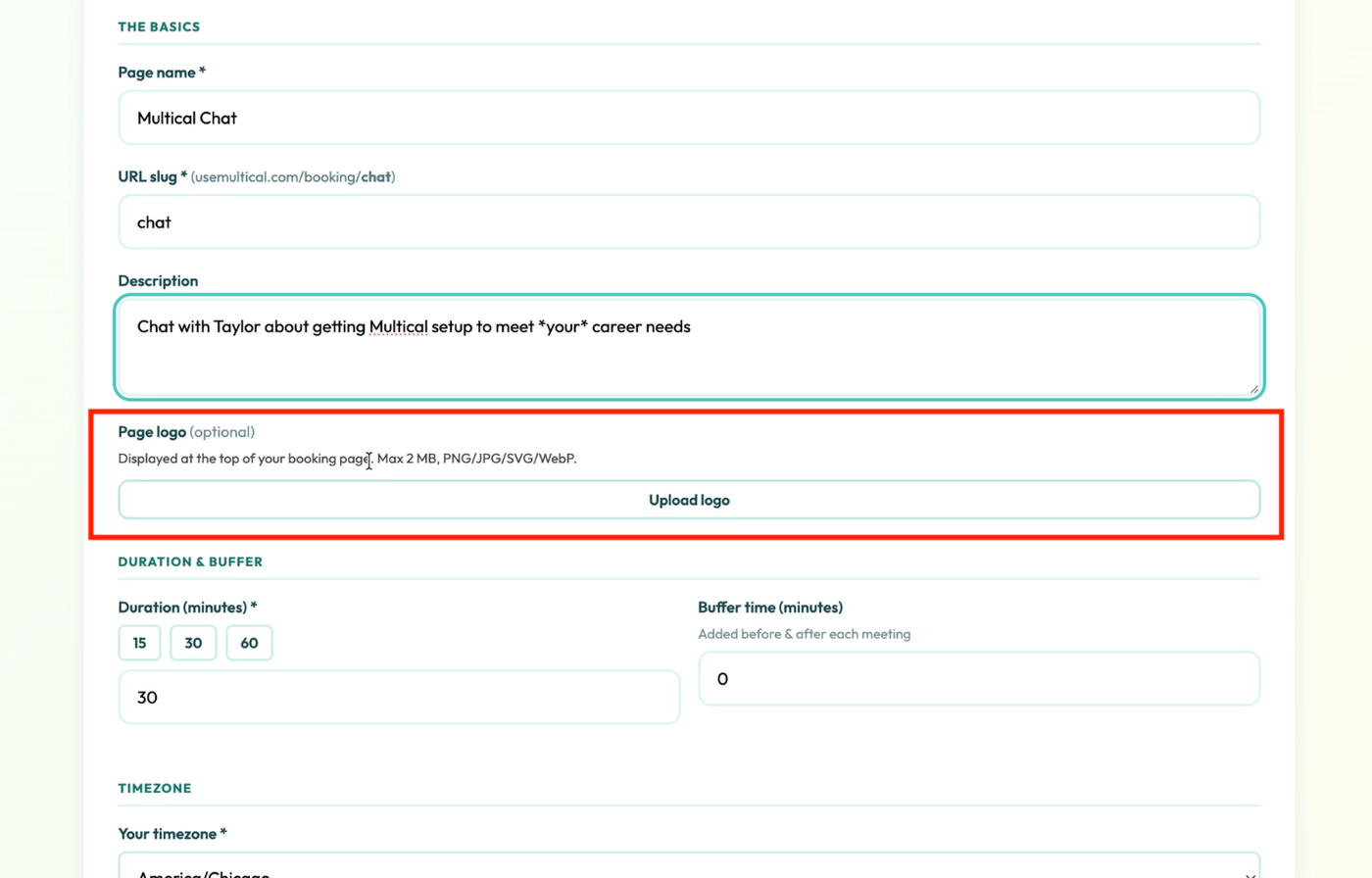
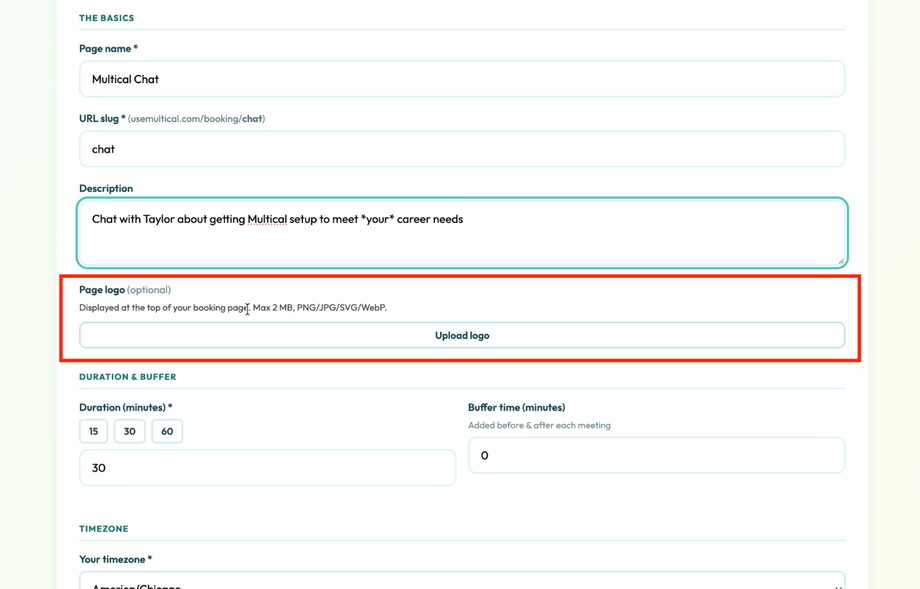
(Optional) Choose a logo that will be viewable on your booking page. We recommend choosing a color that will pop against the dark turquoise background.
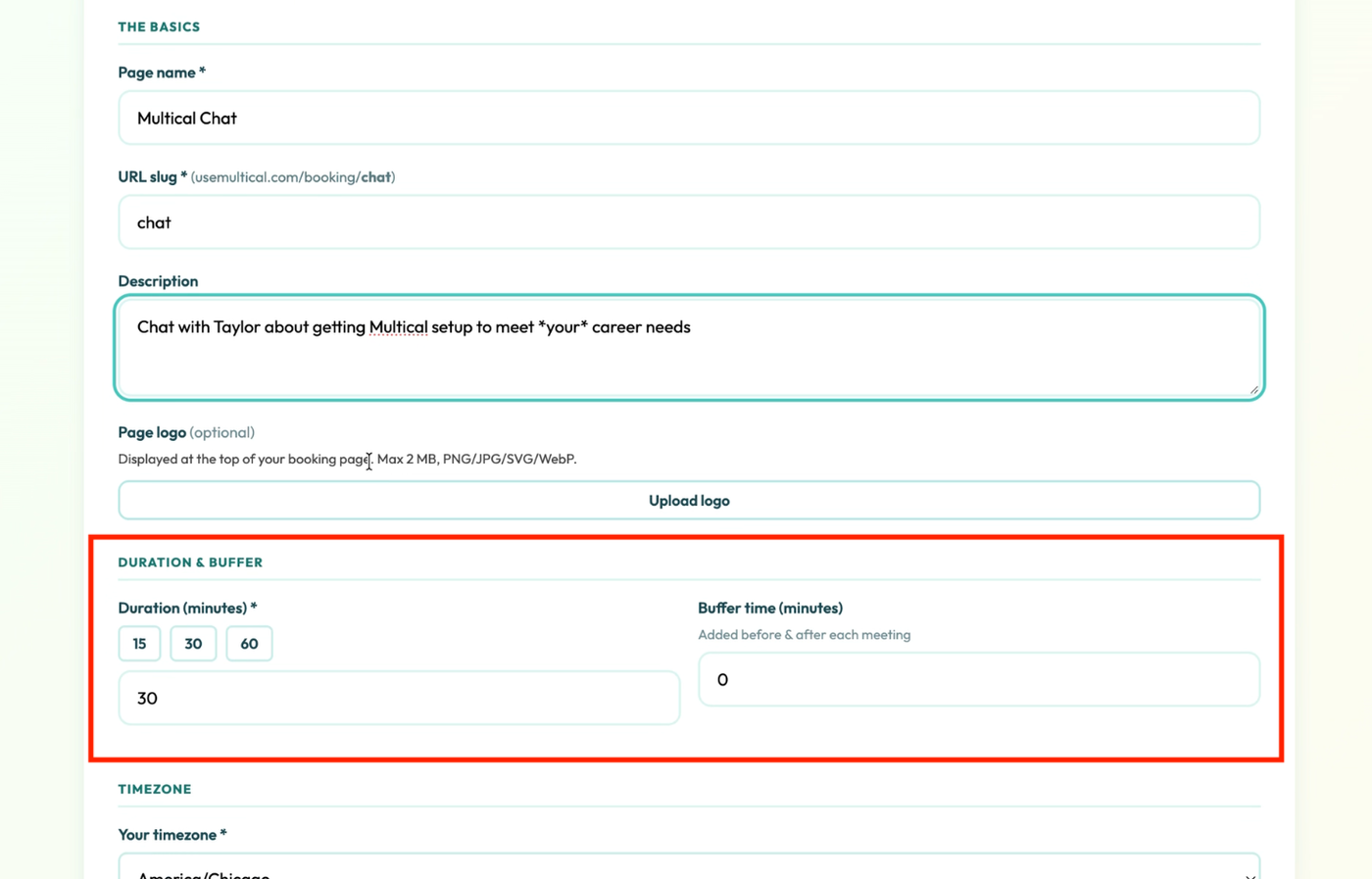
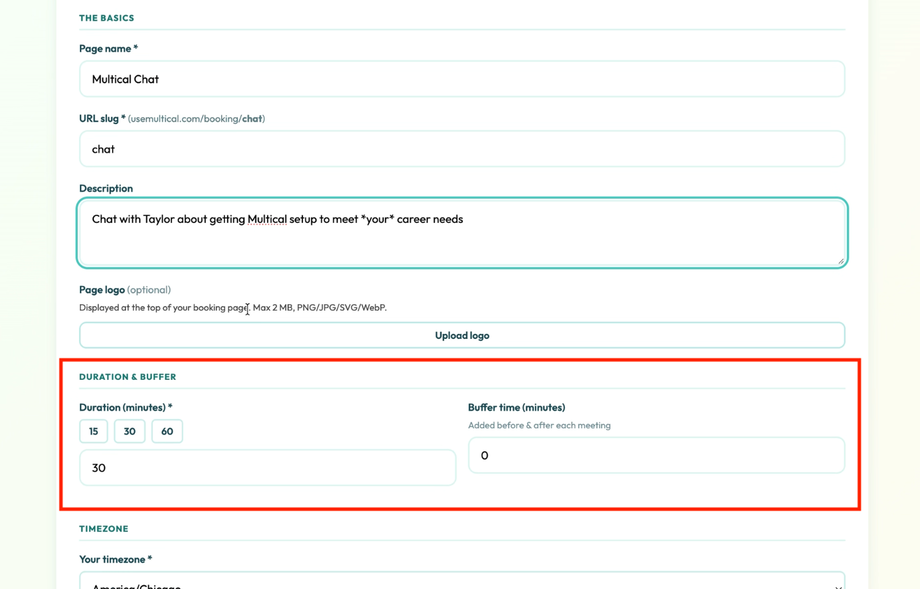
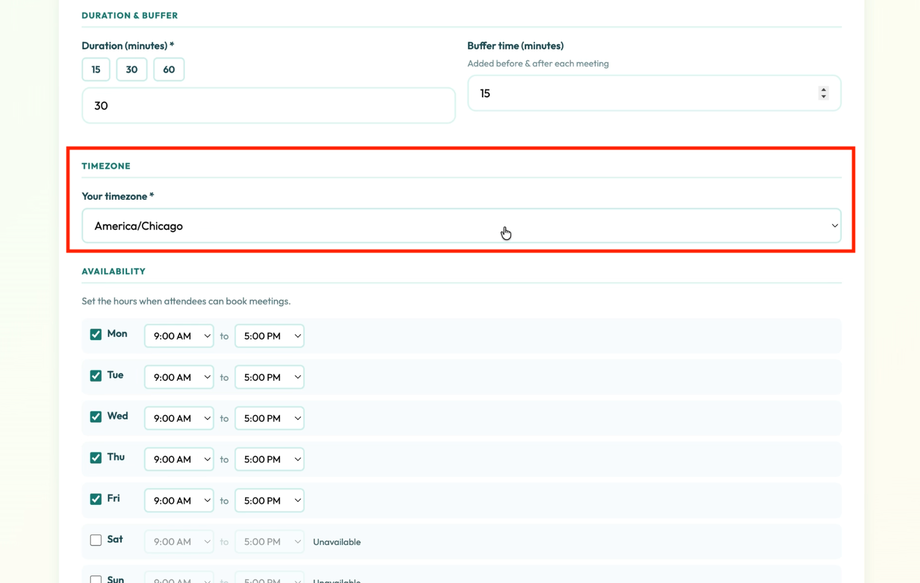
Select the length of your meeting and, if desired, a buffer time to be added before and after each meeting.
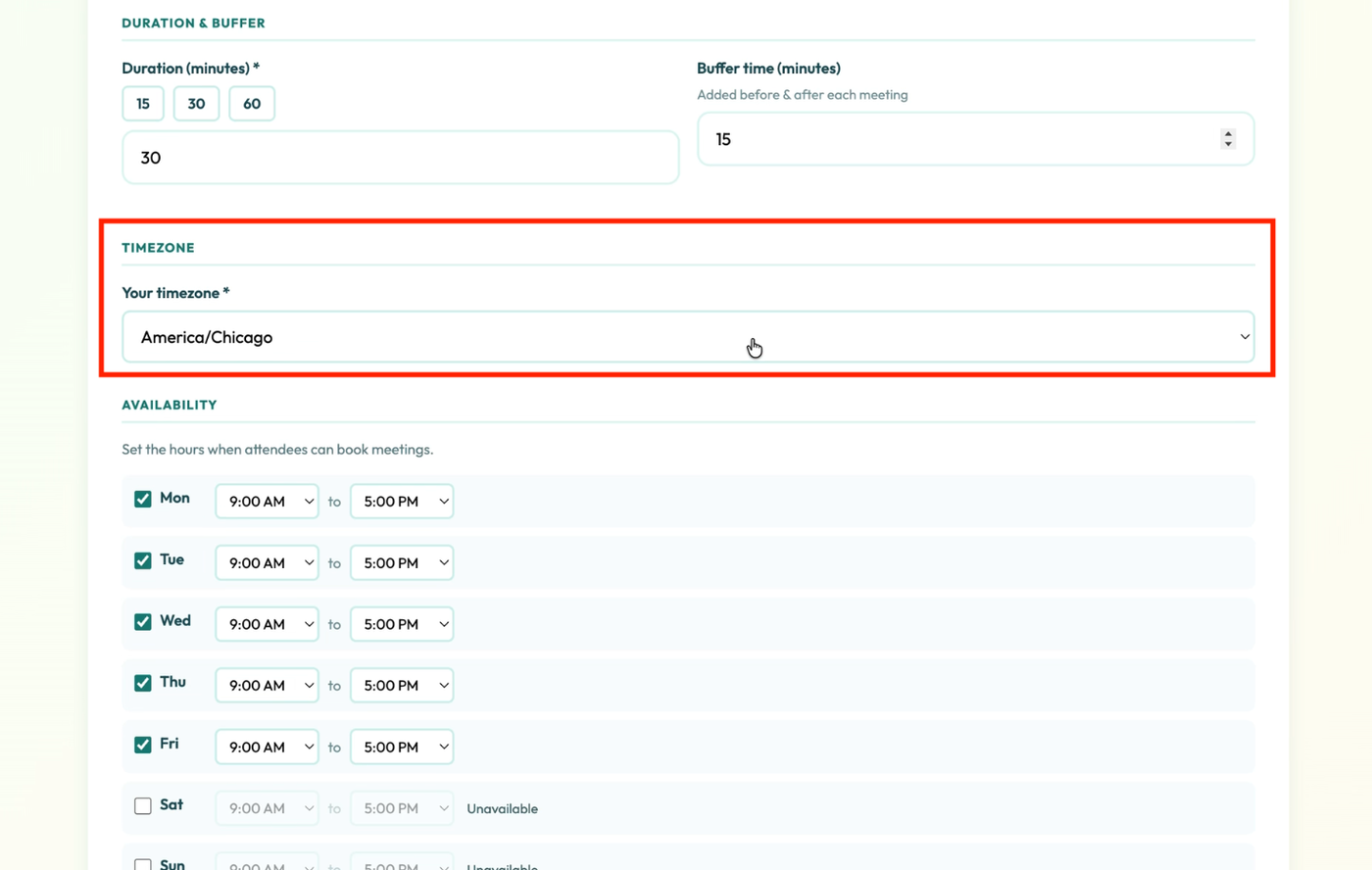
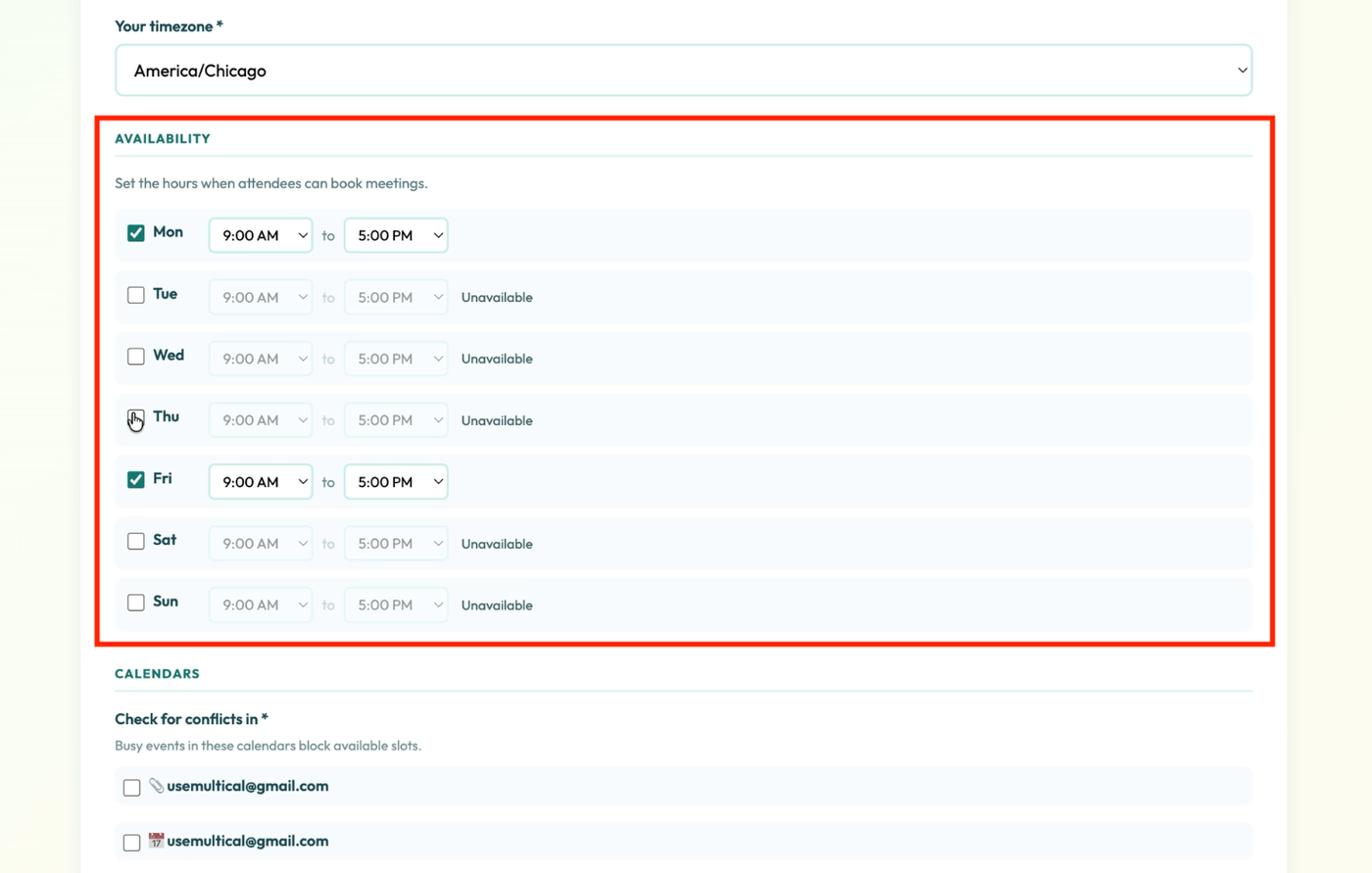
Select your timezone
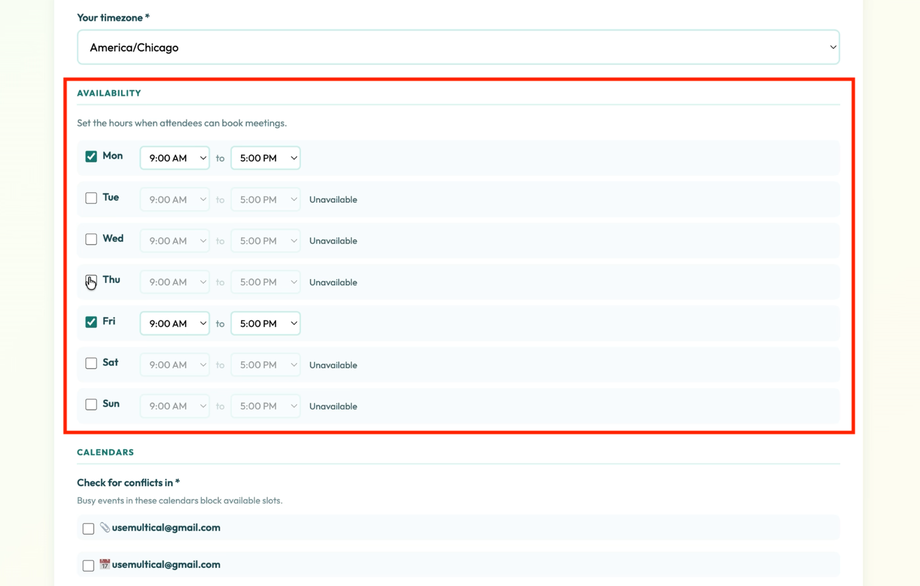
Update your available hours for this booking link
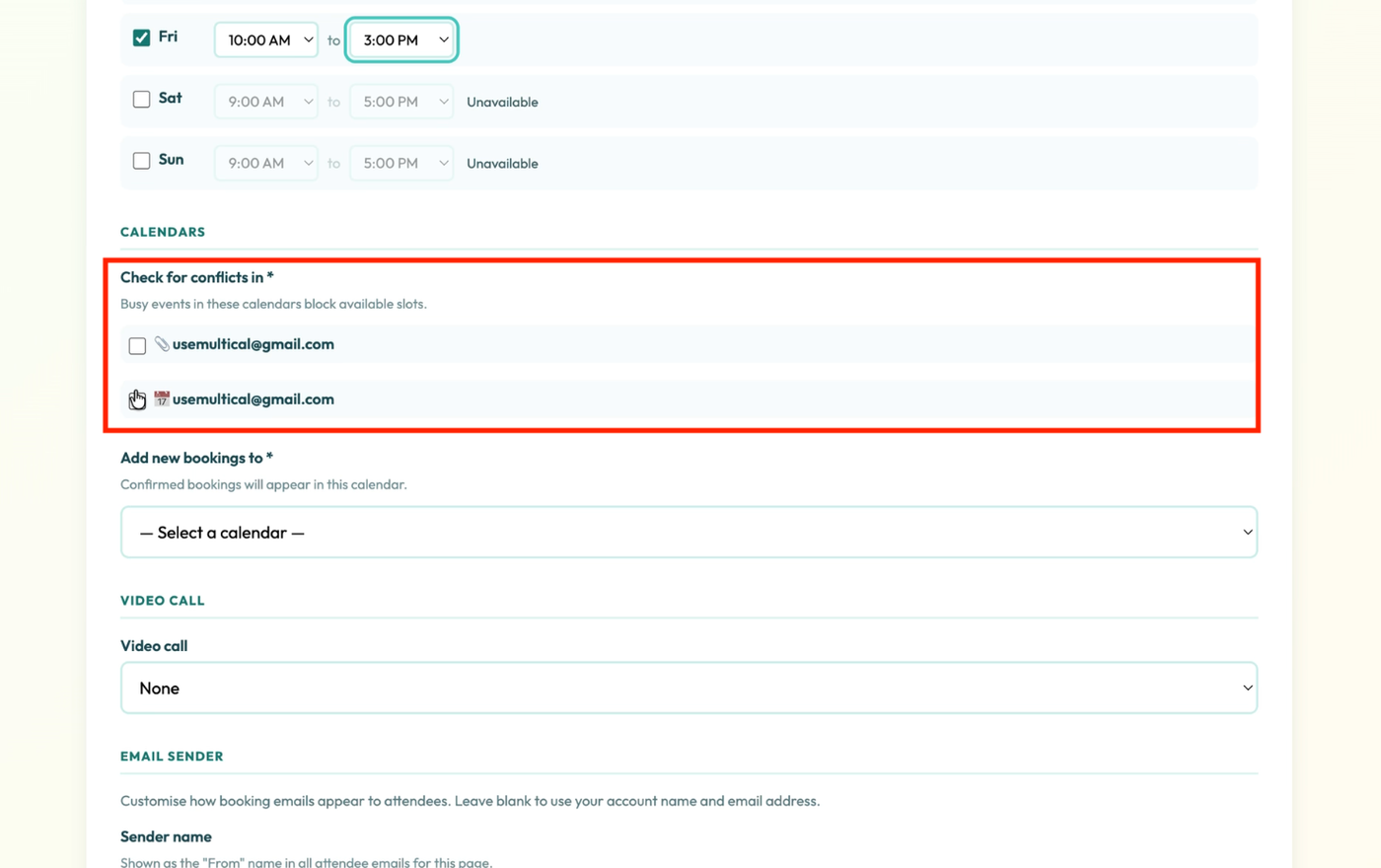
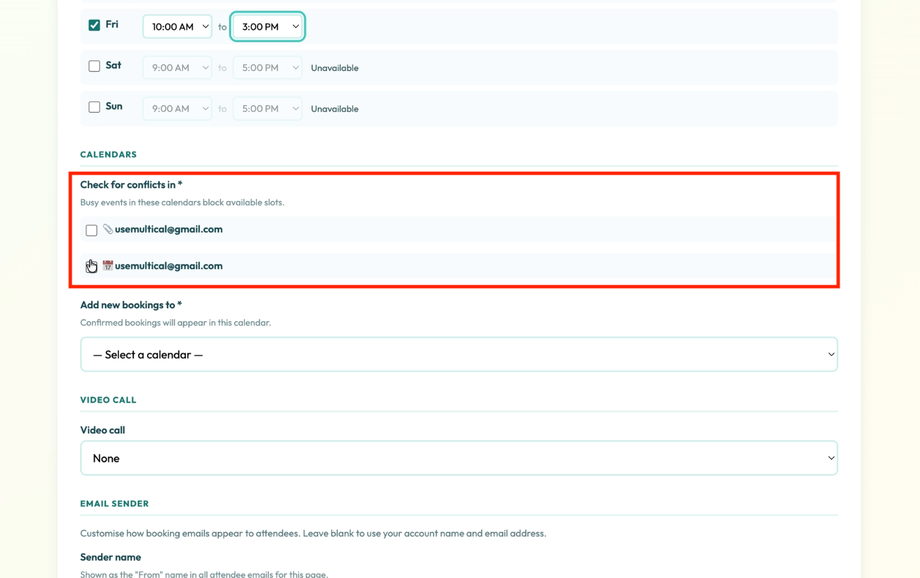
Choose which calendars to check for conflicts and availability
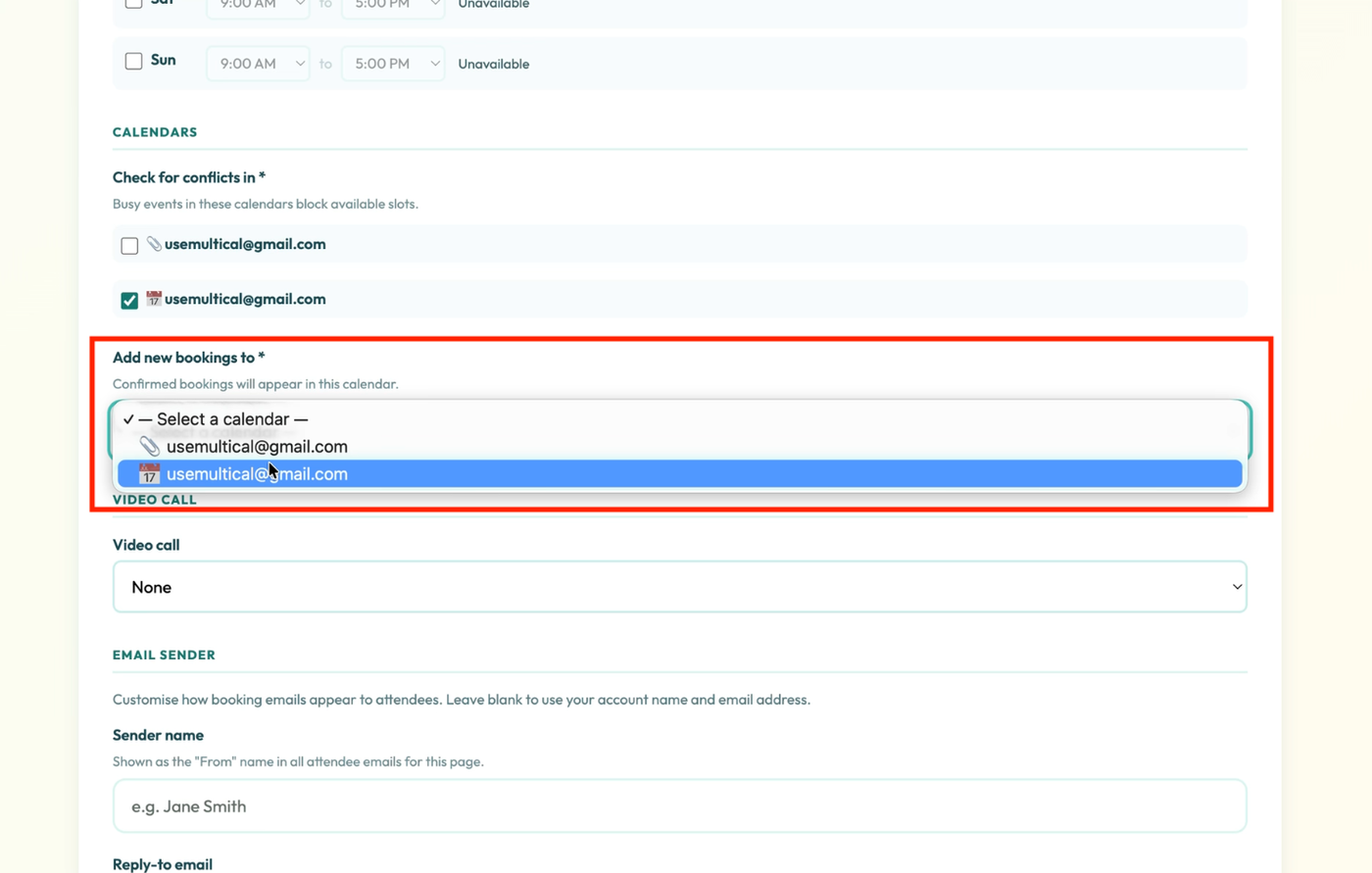
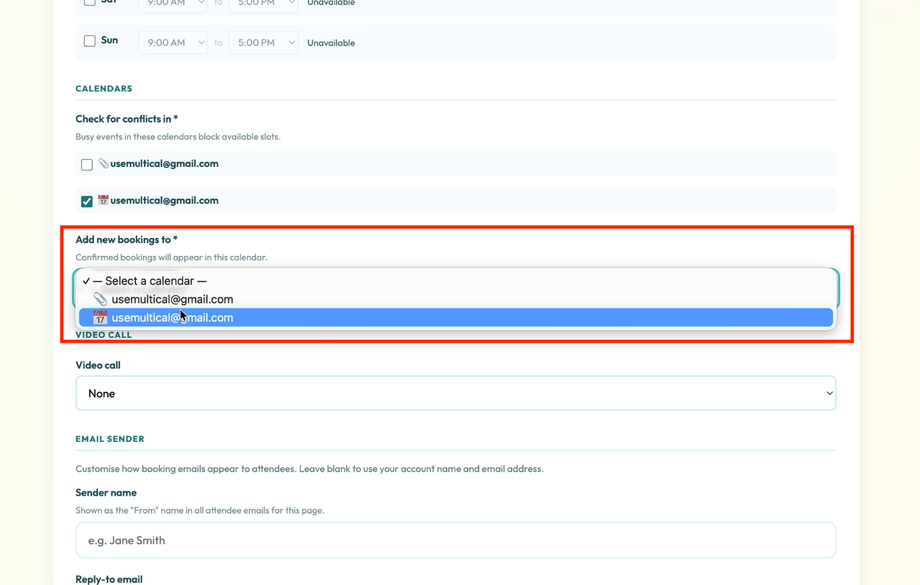
Choose which calendar to add new bookings to
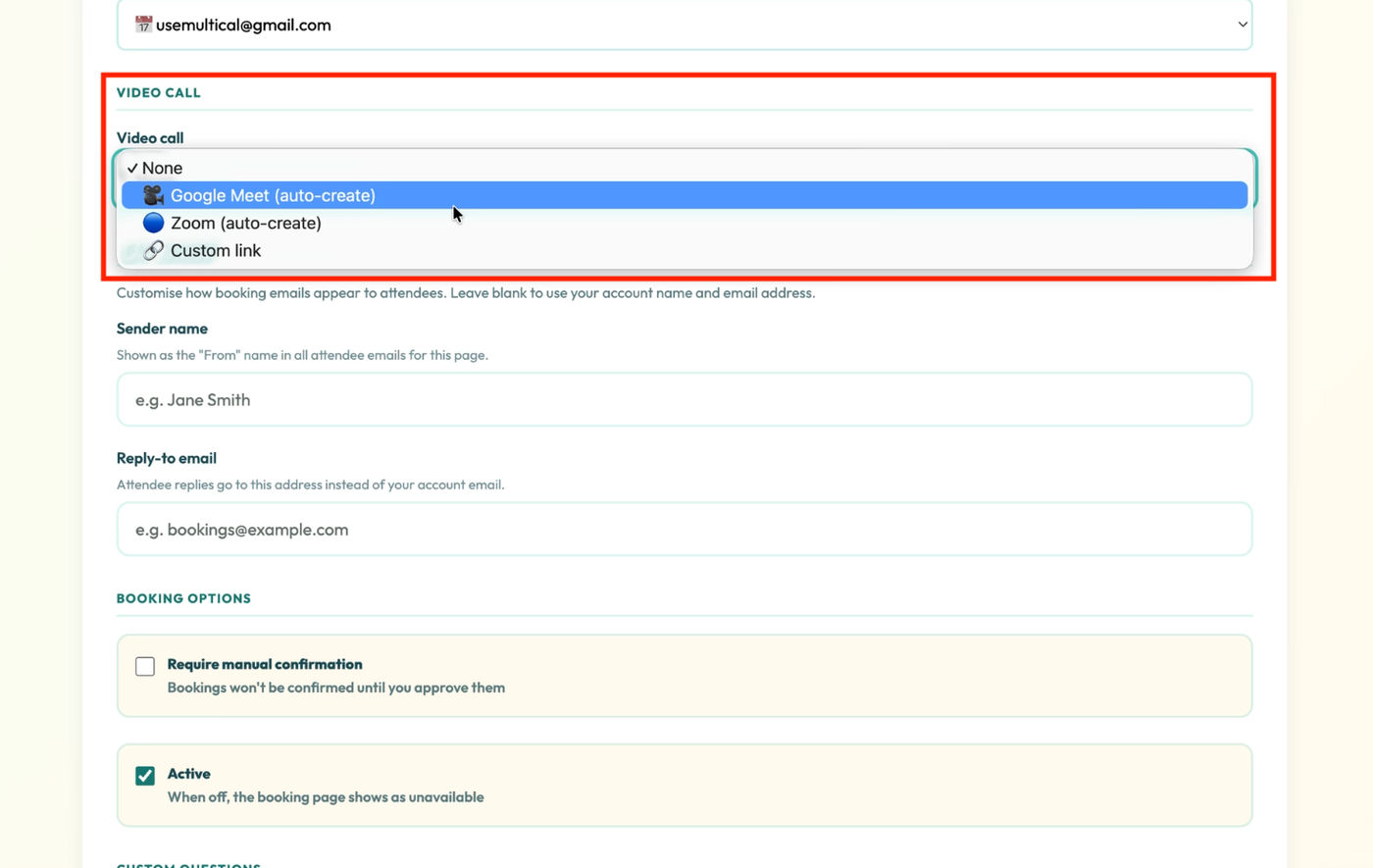
If applicable, choose which system to use for the video call. You have the option to enter your own link.
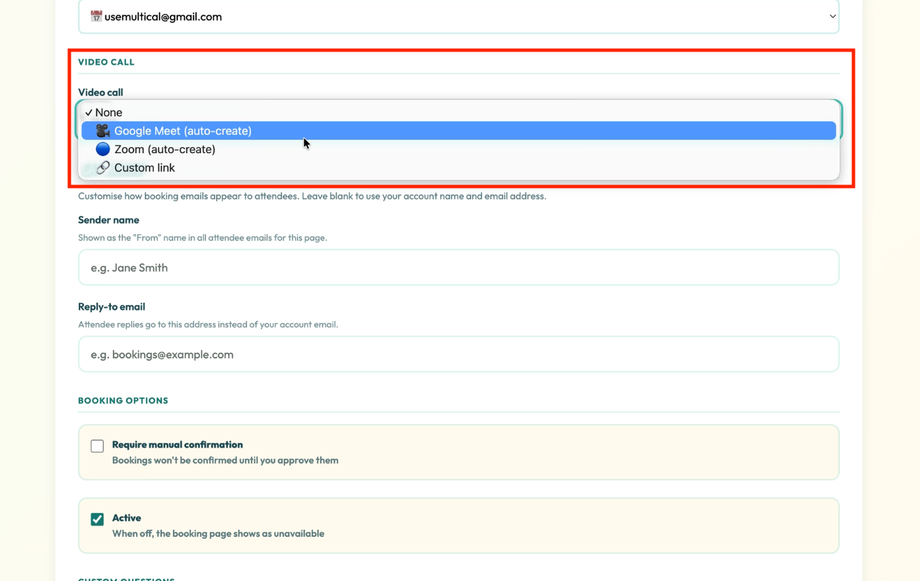
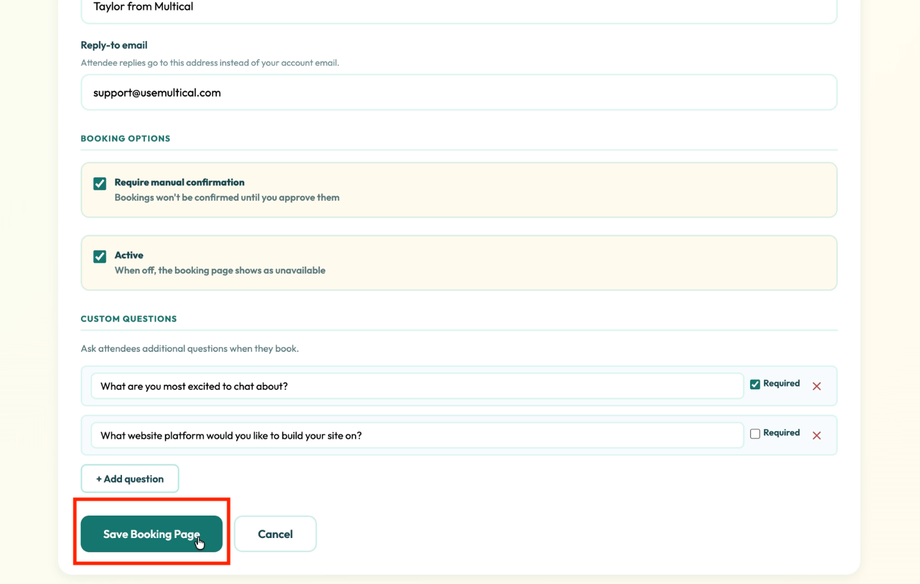
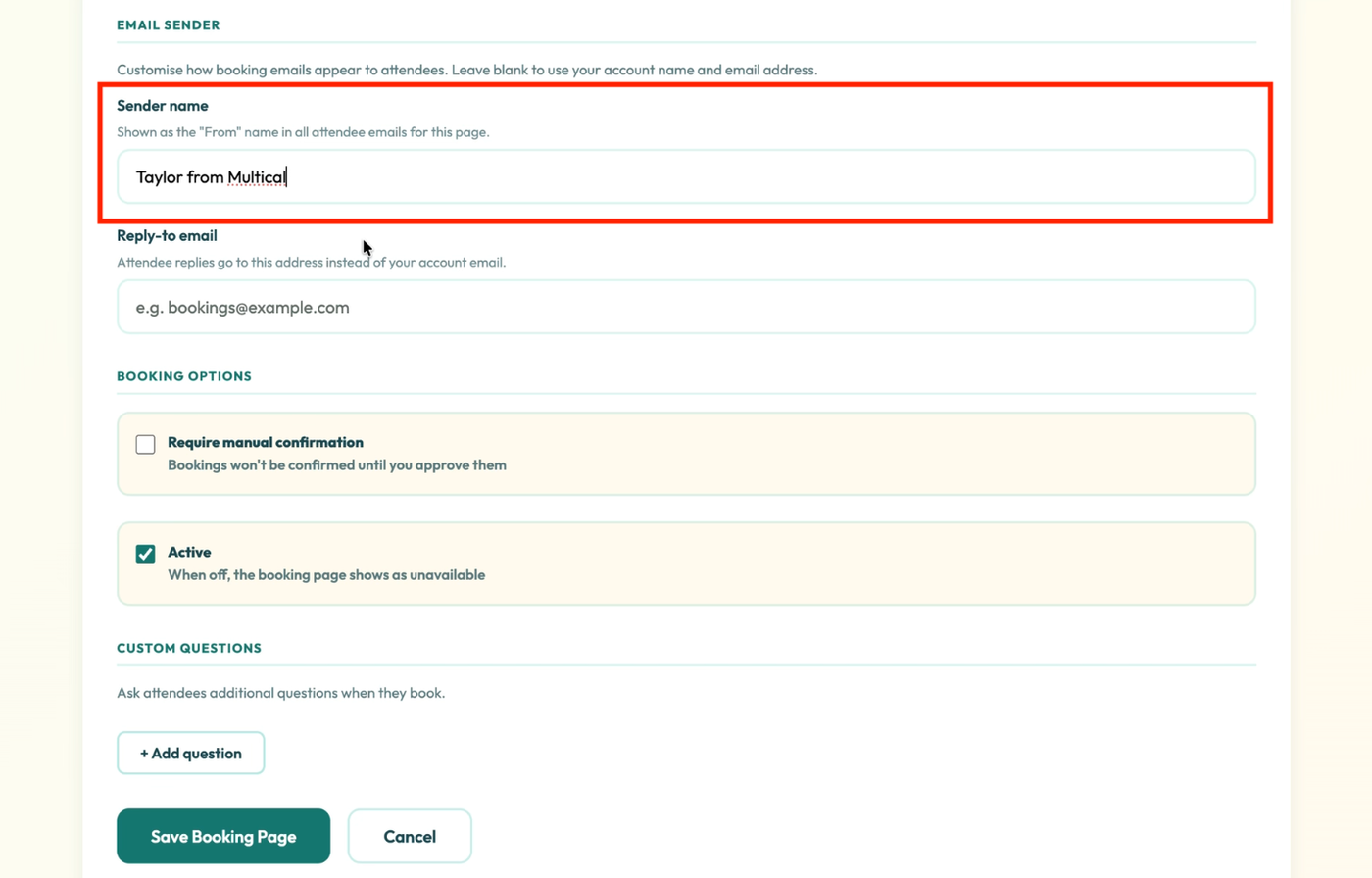
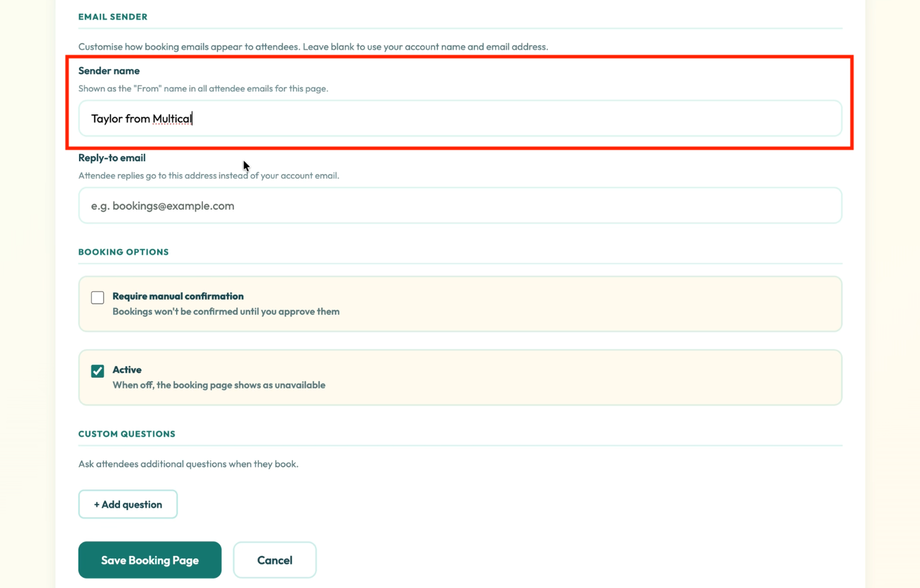
(Optional) Choose the “From” name that people see when they receive emails related to the booking. Great for showcasing different professional identities.
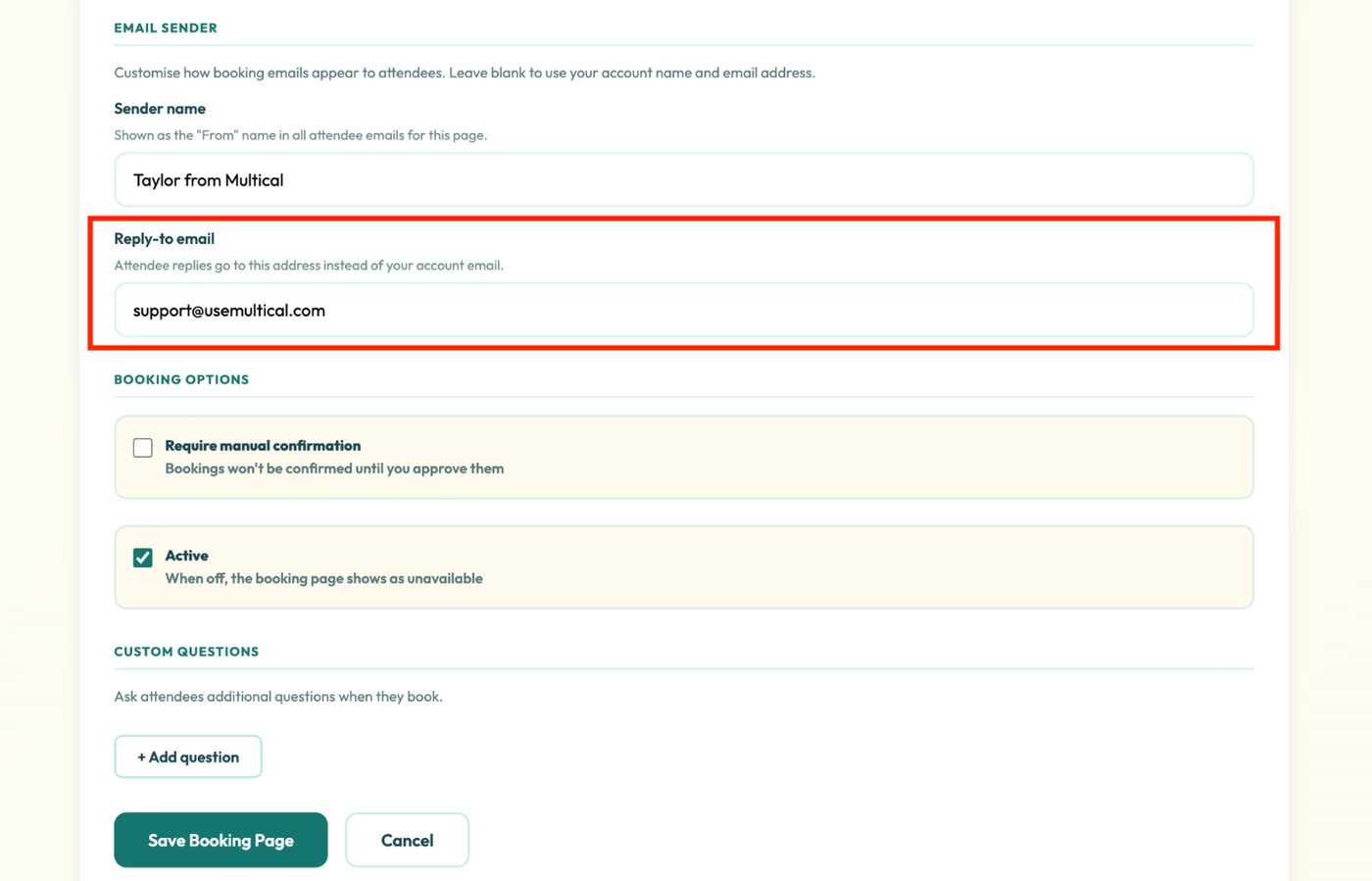
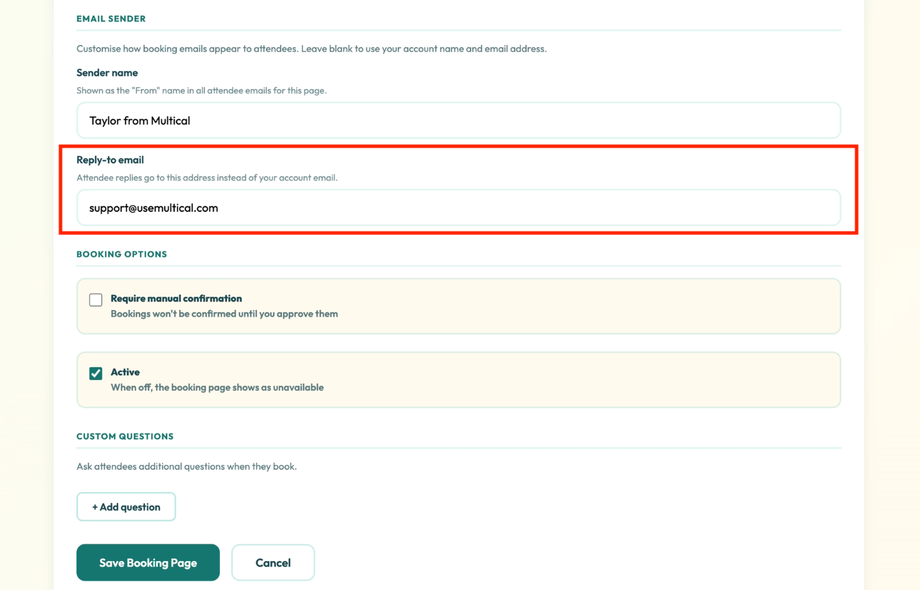
(Optional) Choose a reply-to address for when people reply to emails related to bookings. If not selected, the reply-to address will be the email associated with your Multical account
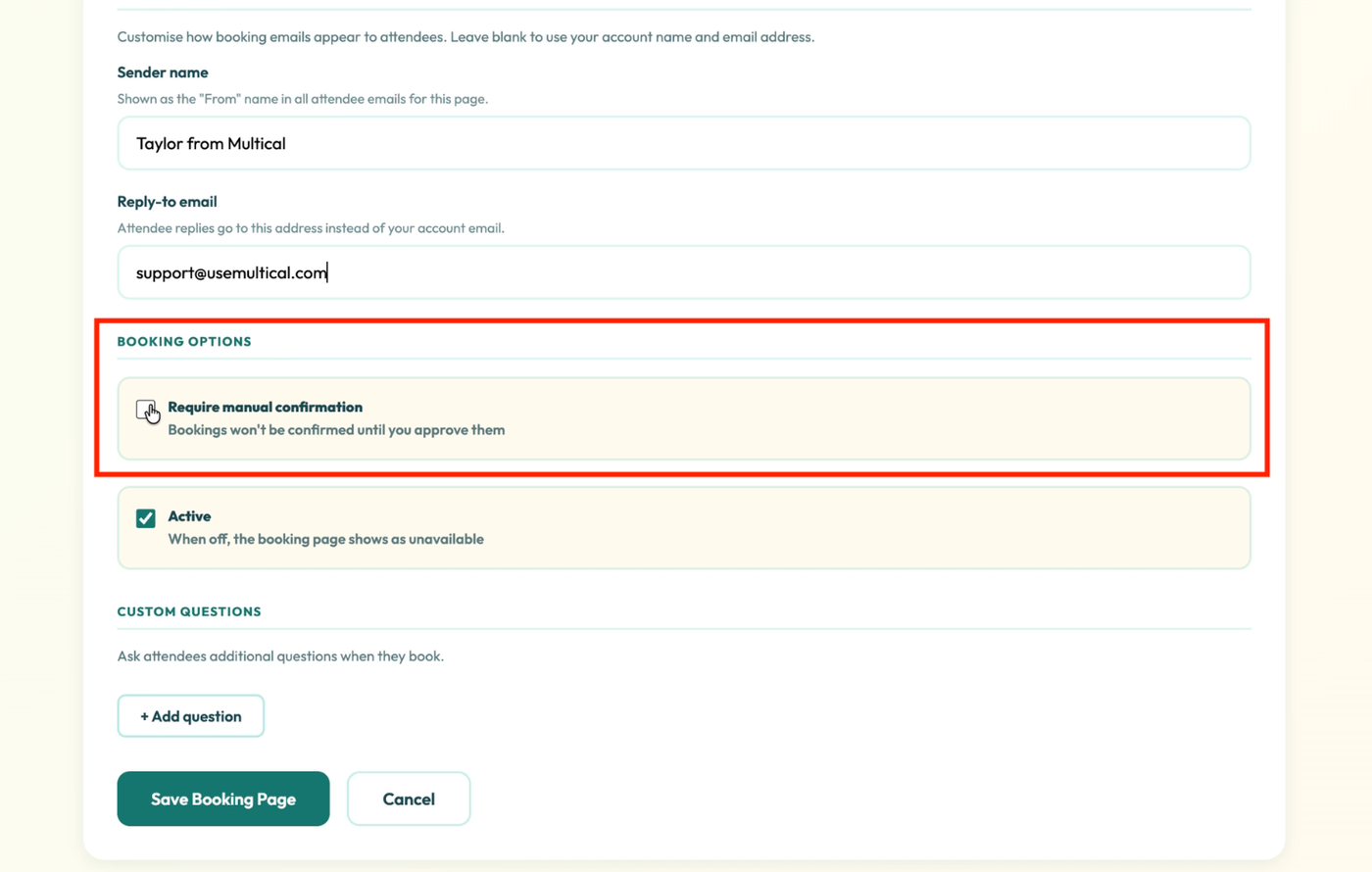
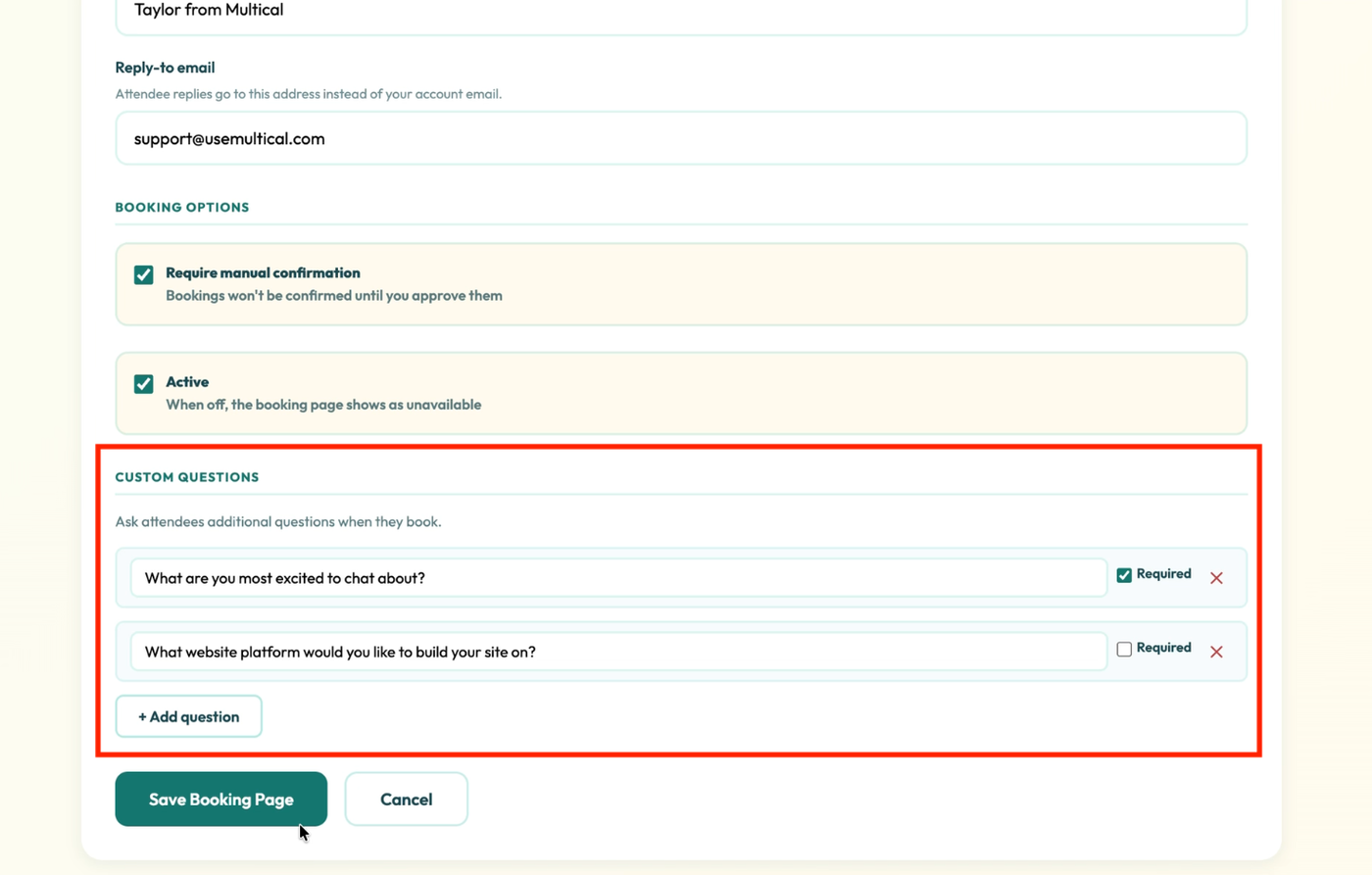
(Optional) Require approval before the booking is confirmed
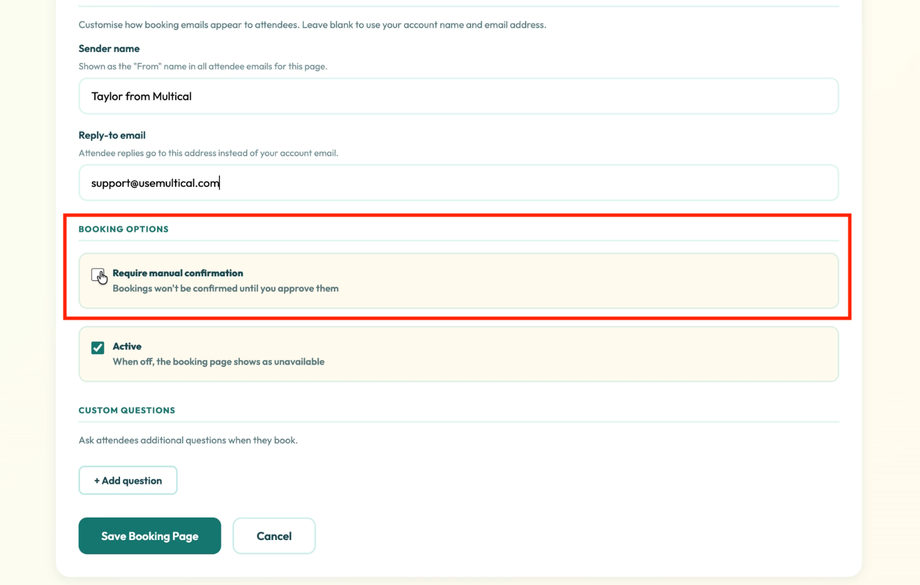
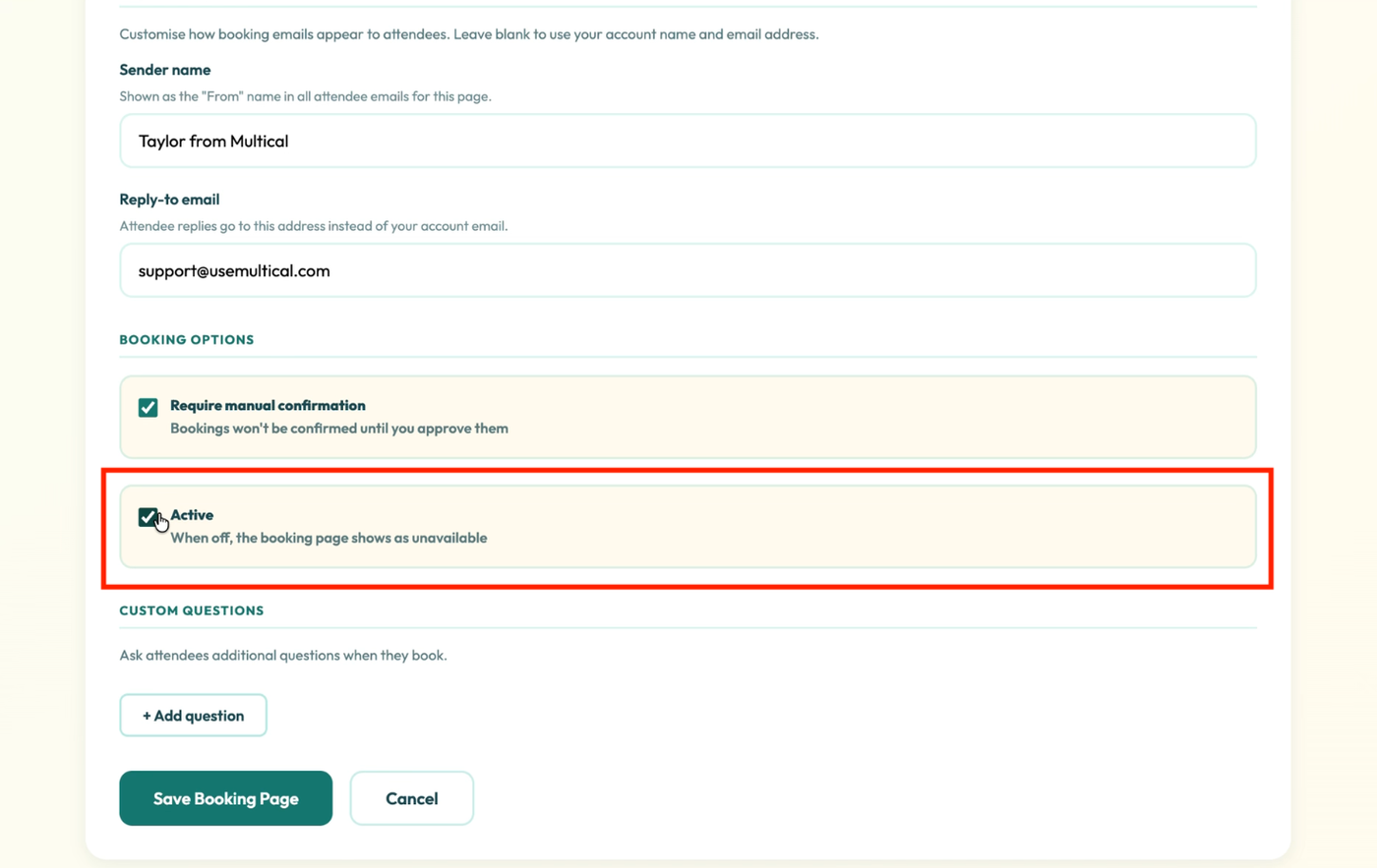
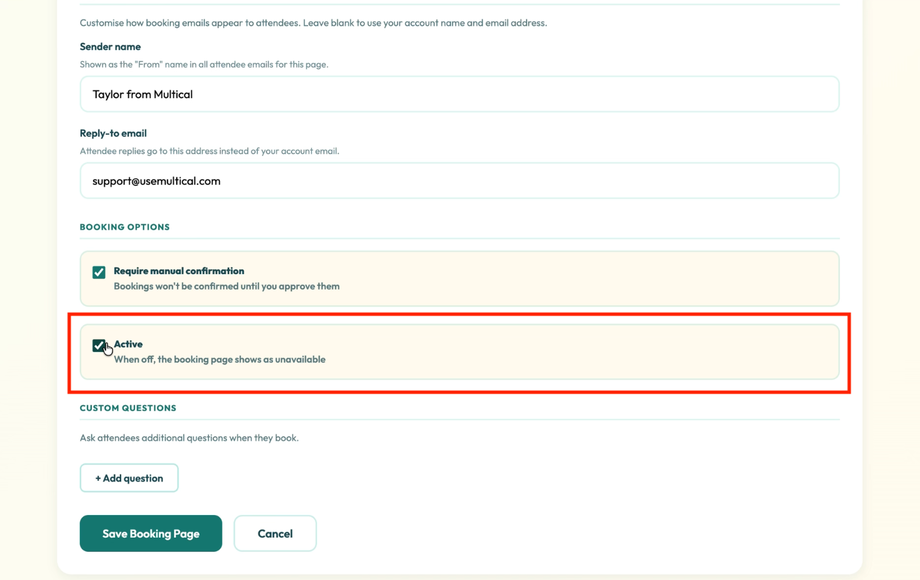
Uncheck the Active box to make the booking page unavailable
(Optional) Add custom questions while people are booking a meeting
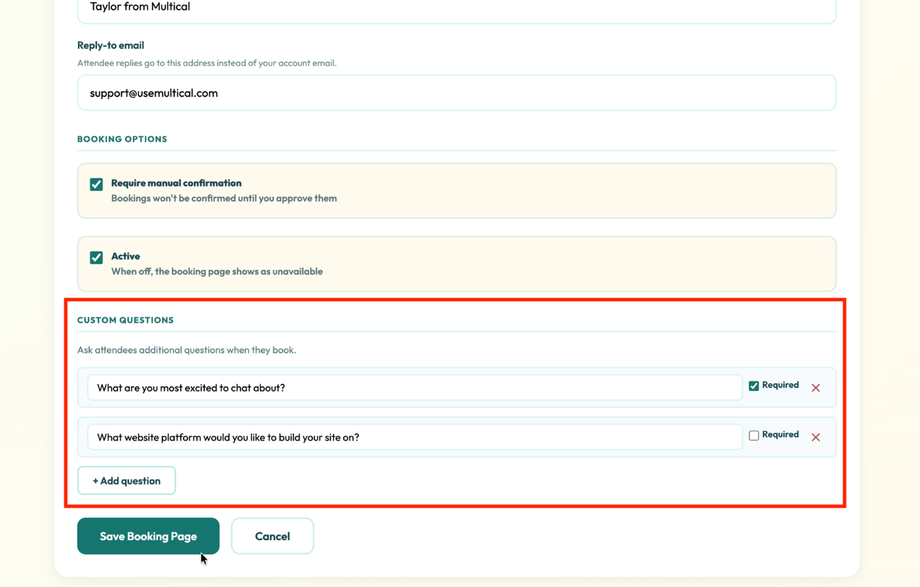
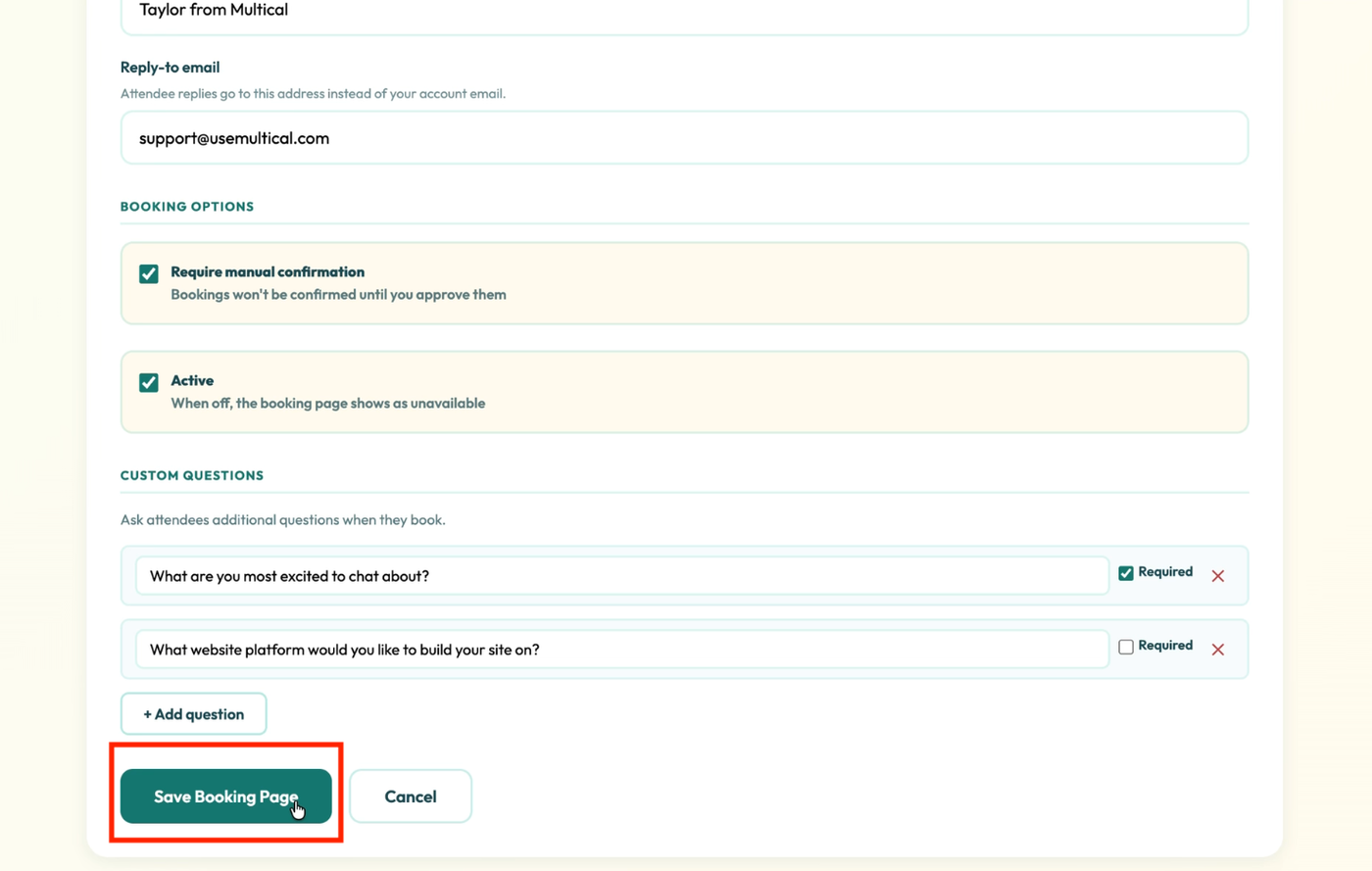
Click Save Booking Page