
Before you connect your Apple iCloud calendar, you need to decide whether you want to give Multical full access or read-only access.
Read only access: Multical can read the events on your iCloud calendar and sync them to another calendar.
Full access: Multical can read the events on your iCloud calendar and sync them to another calendar, AND Multical can also add events from another calendar to block time out on you iCloud calendar.
Full access
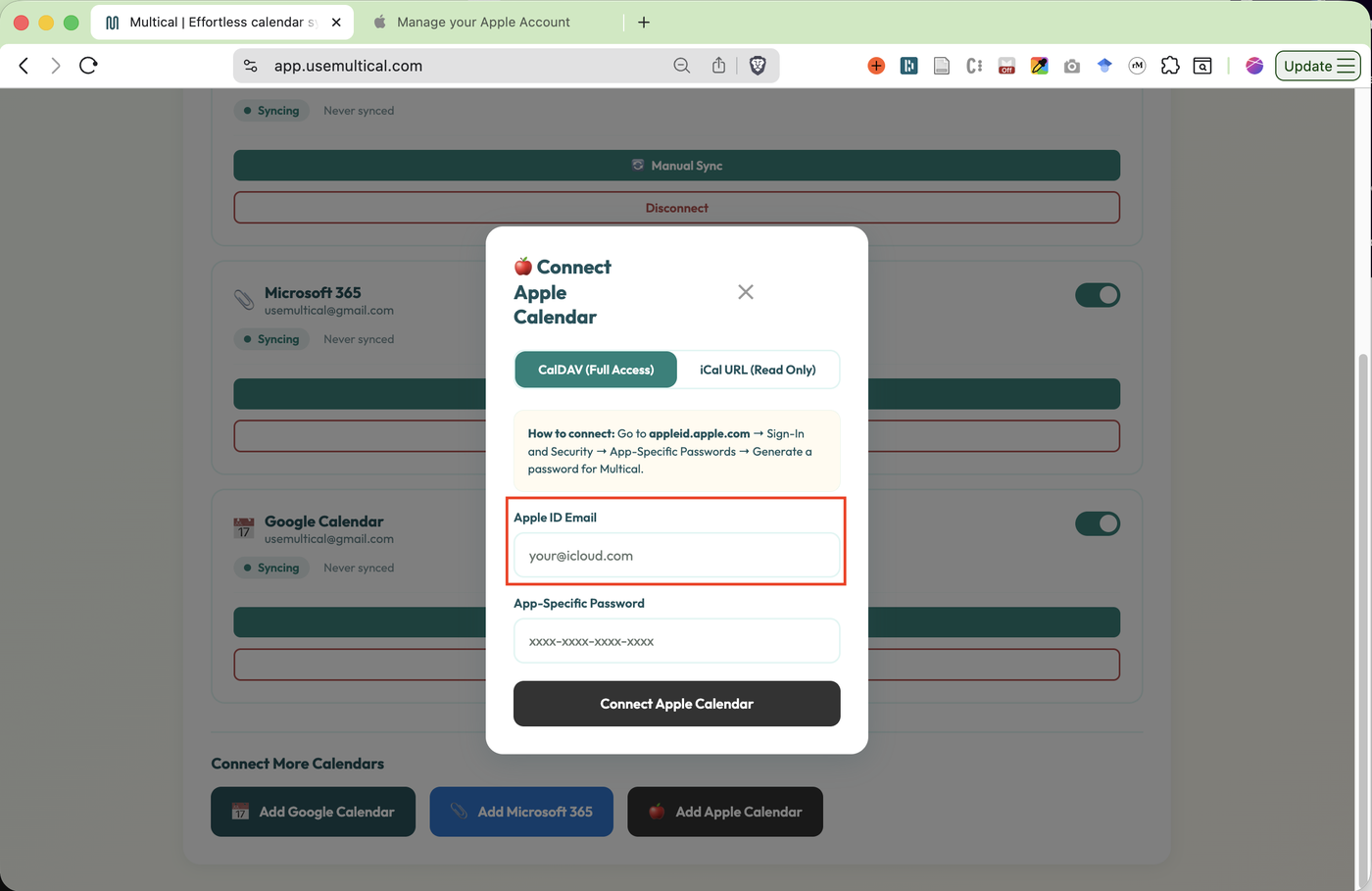
Type in your iCloud email.
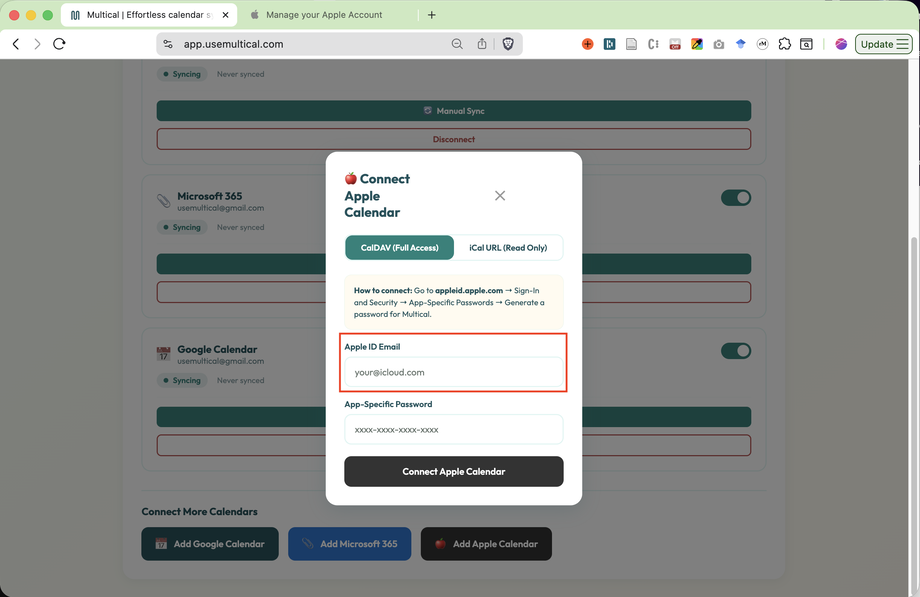
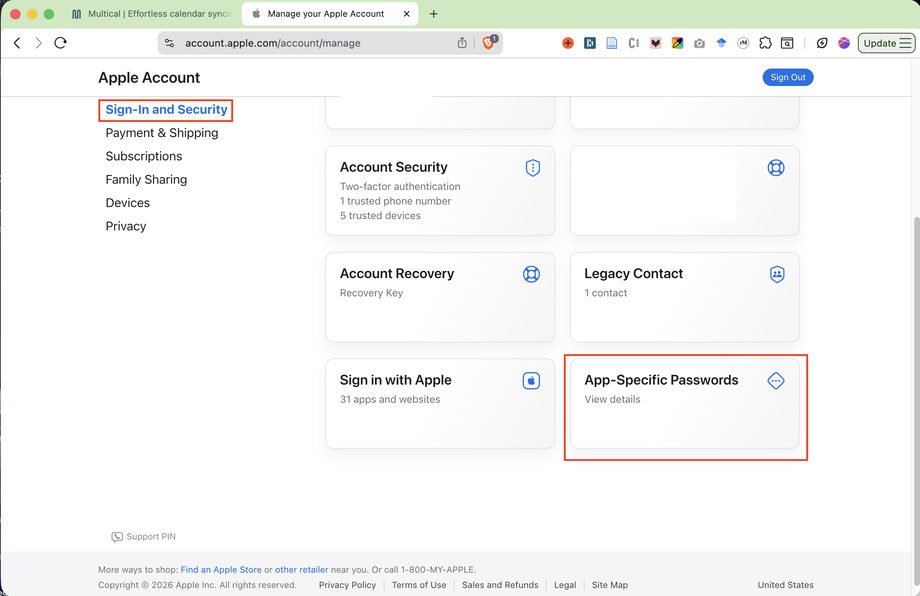
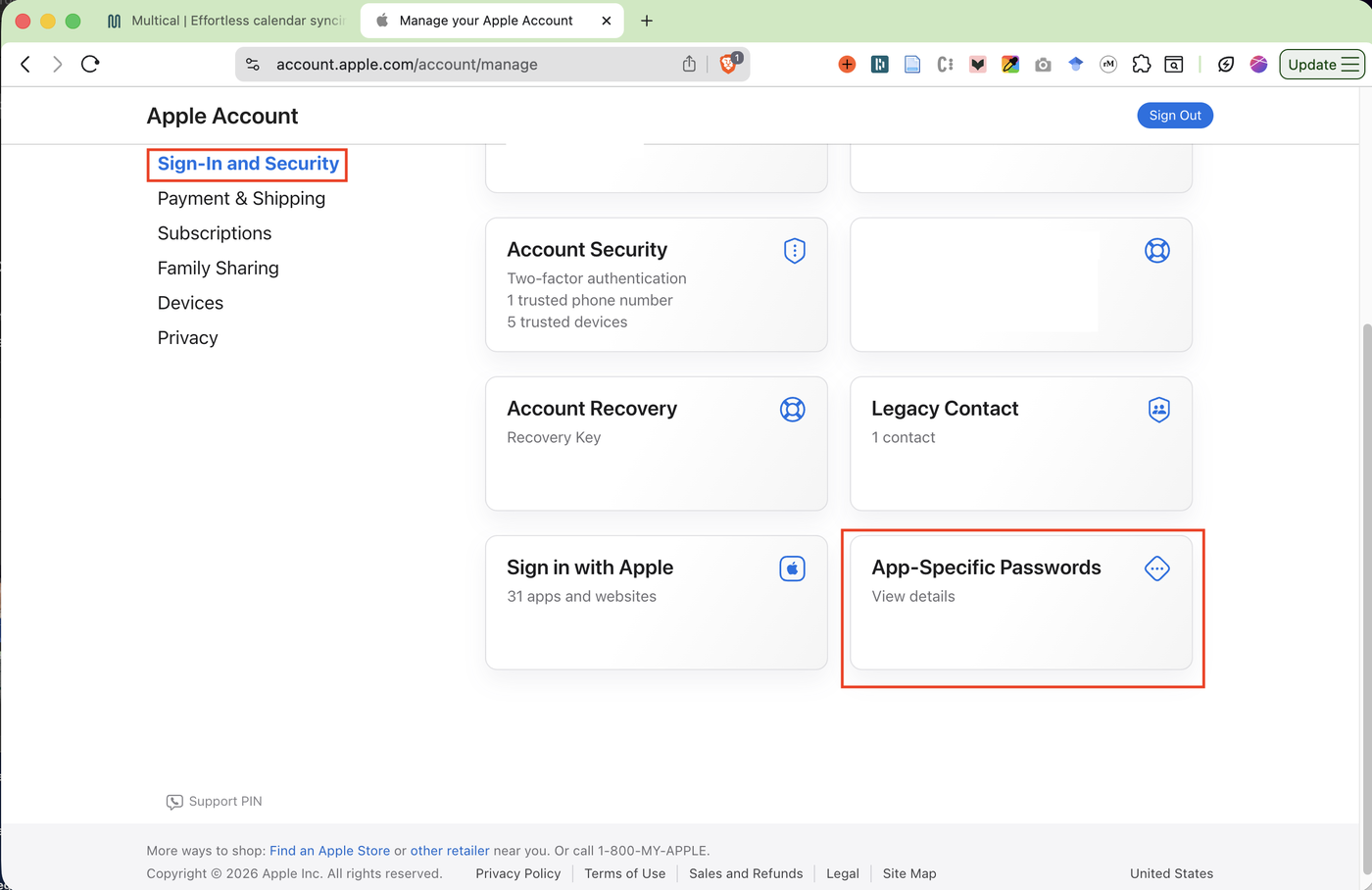
Visit appleid.apple.com. Click on Sign-in and Security. Then click App-Specific Passwords
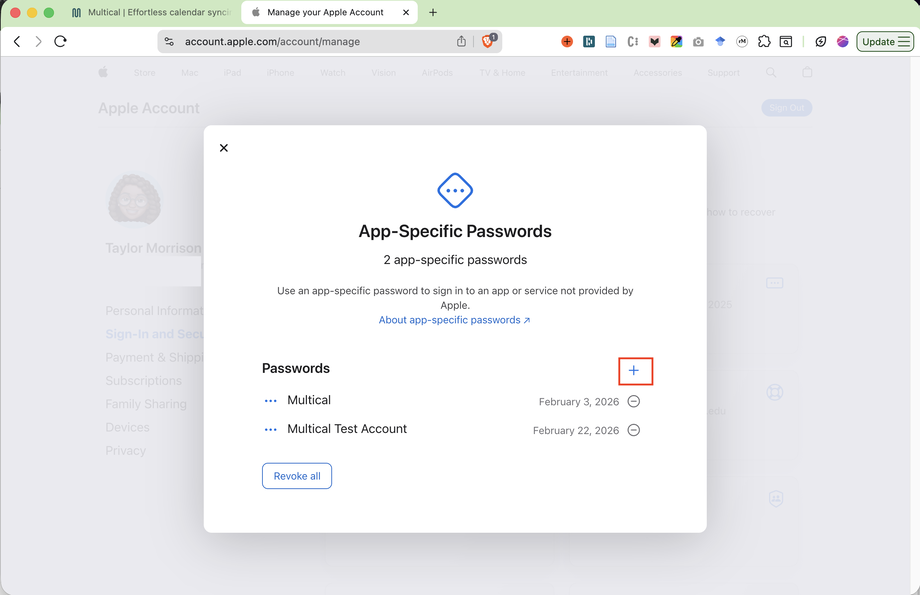
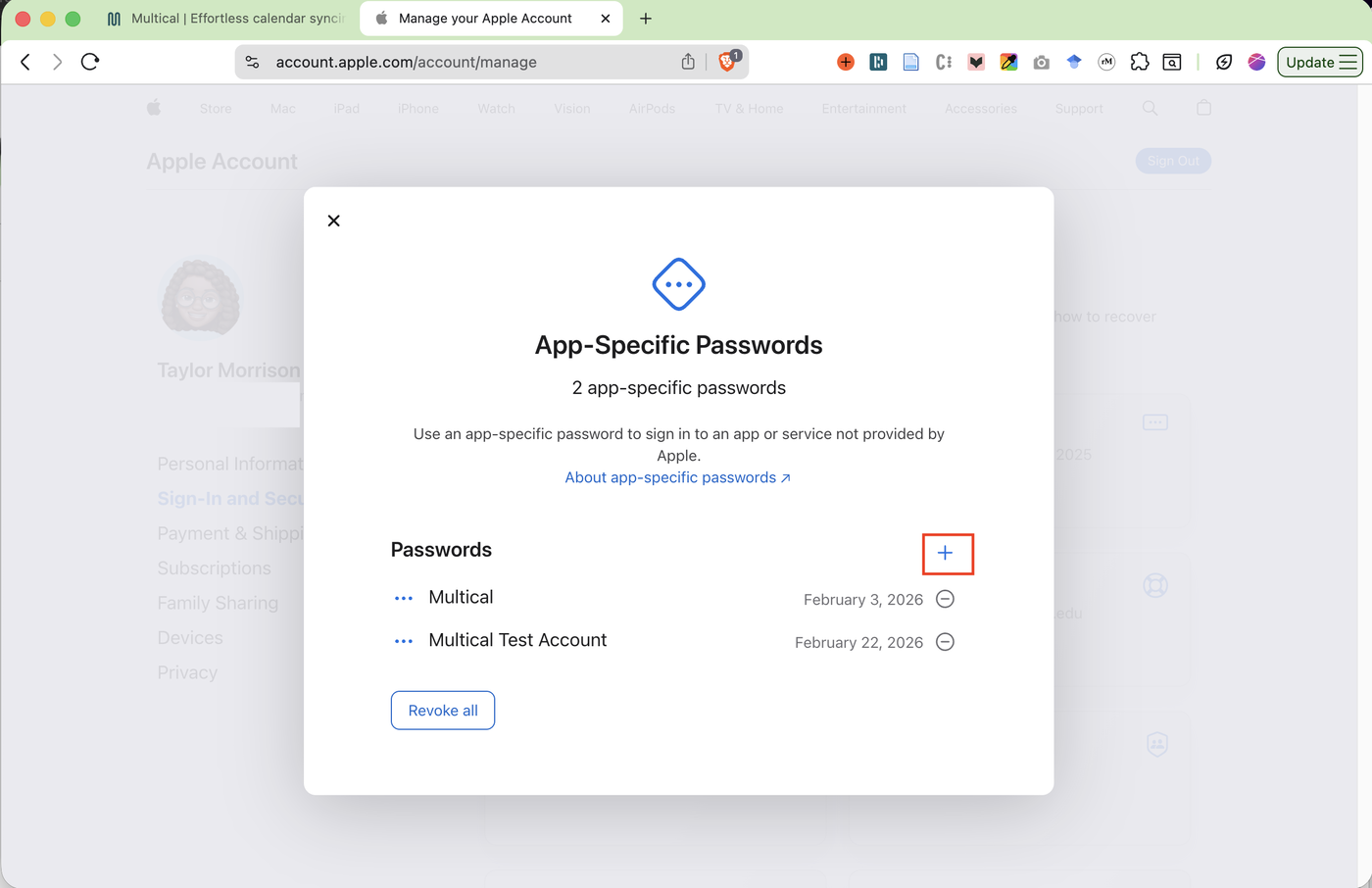
Click the + sign to add an App-Specific Password for Multical.
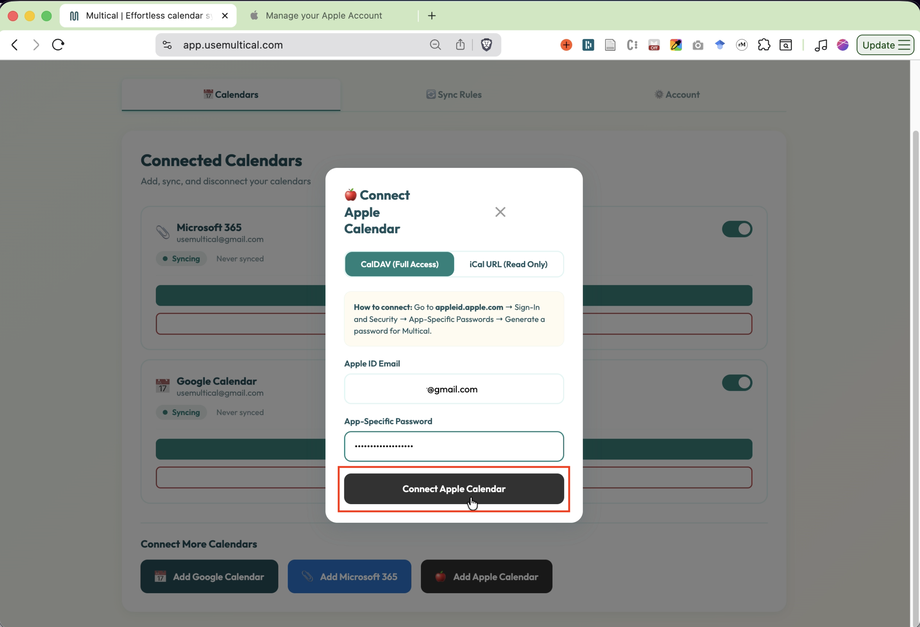
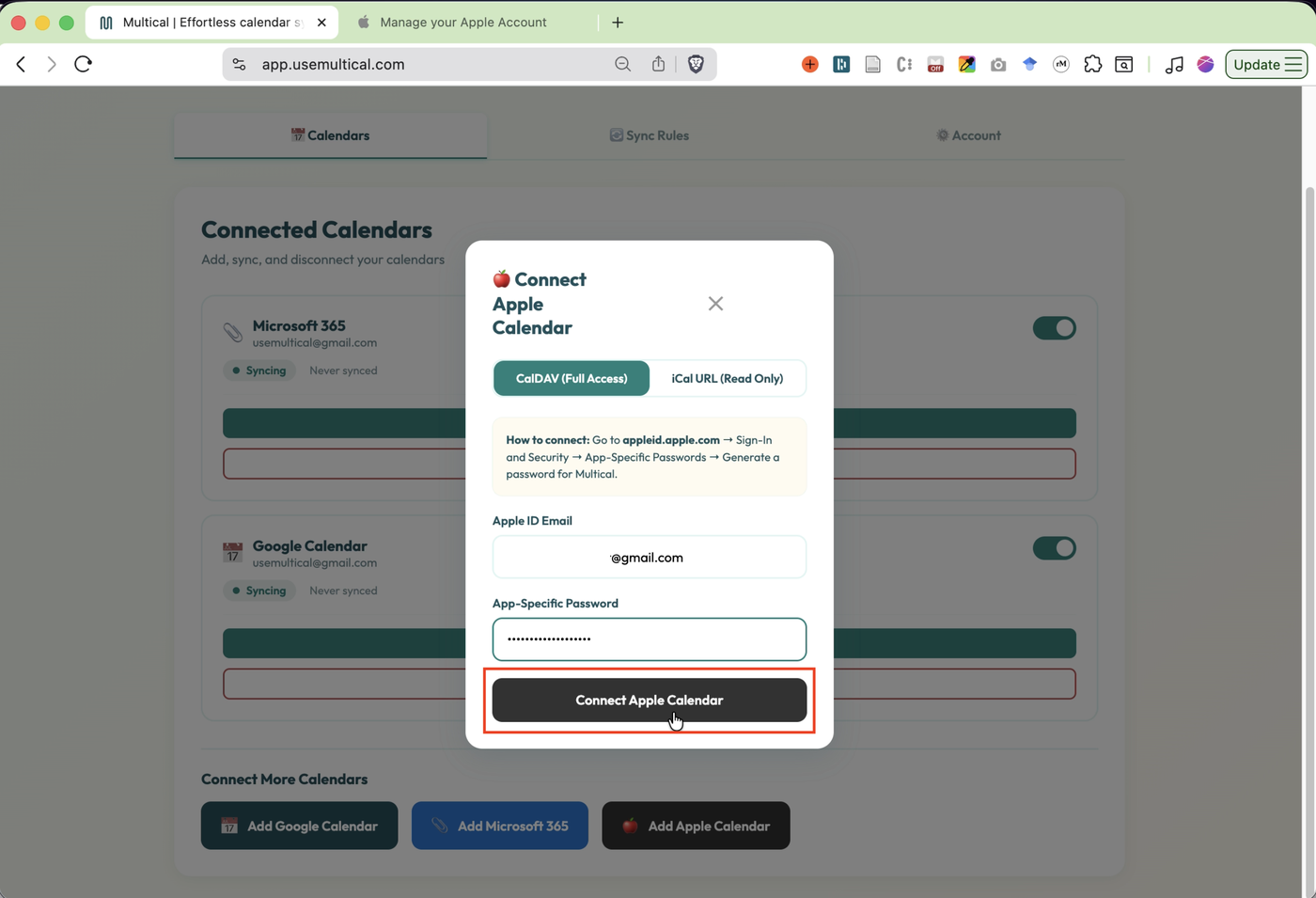
Copy and paste your App-Specific Password into Multical. Click Connect Apple Calendar.
Read Only Access
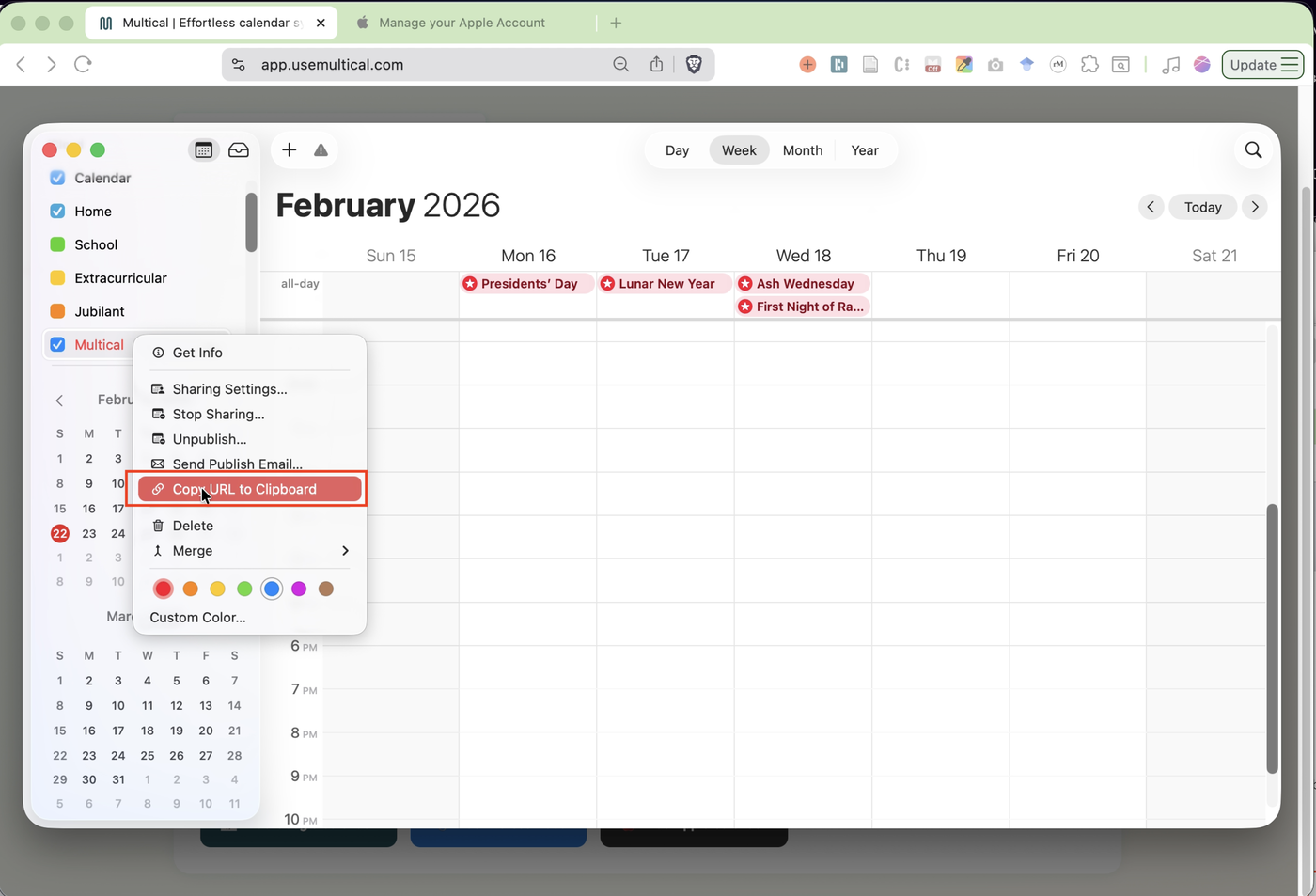
In the Apple Calendar app, right click on your calendar, and copy the calendar URL to clipboard.
Note: If you do not see that option, right click on the calendar, click Share Calendar, and check Public Calendar.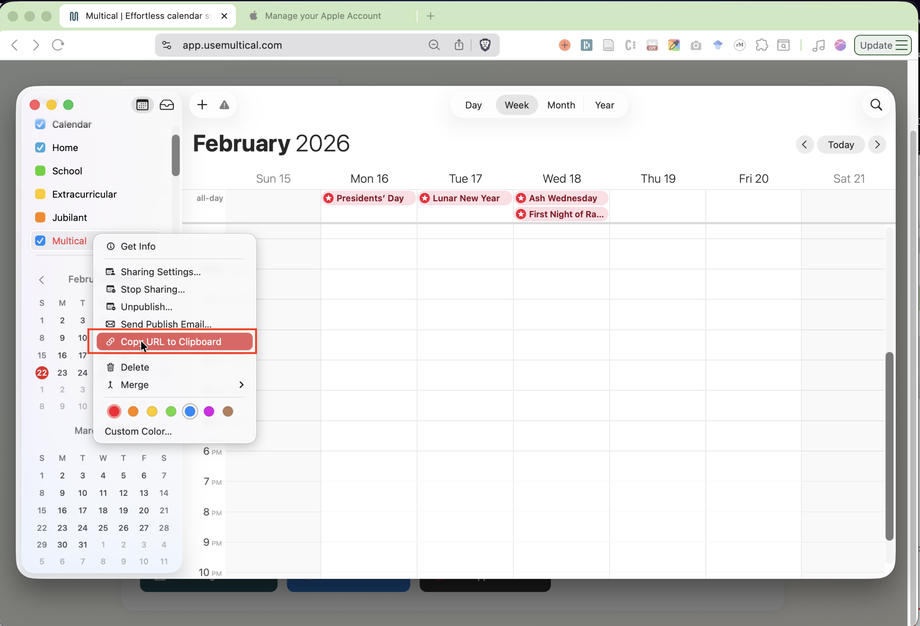
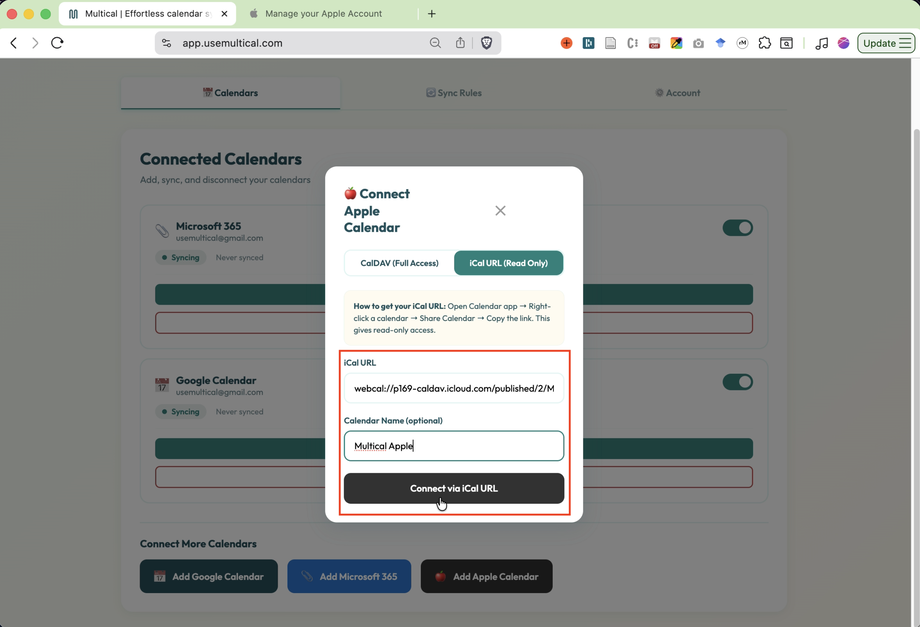
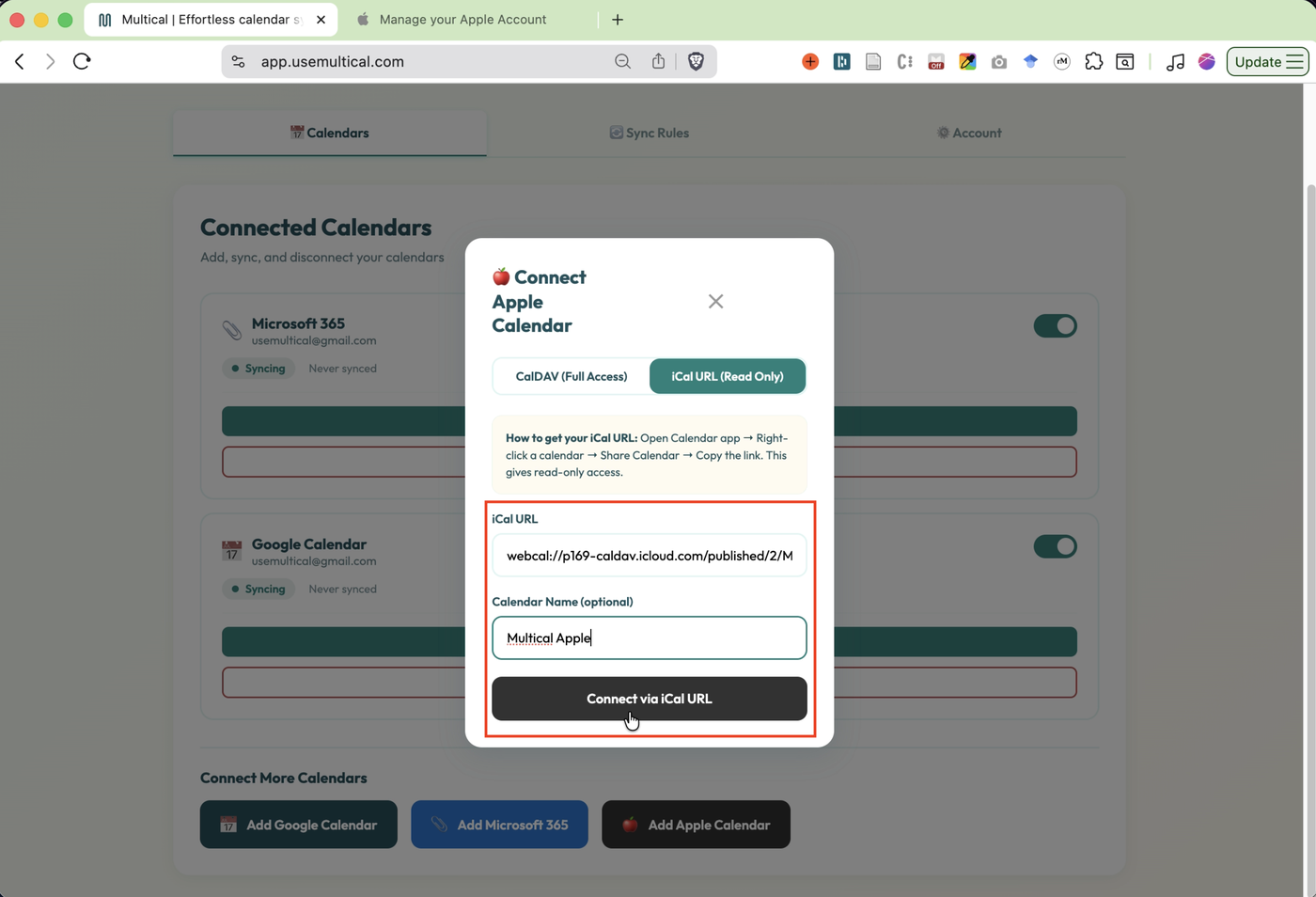
Paste the URL into Multical. Name you calendar, if you’d like. Then click Connect via iCal URL