

If you manage Google Workspace for your organization, you may need to approve Multical before your team members can connect their Google Calendars.
Approval takes about a minute and does not require signing up for Multical or incurring any cost.
Who needs to do this
A Google Workspace Super Admin, or a user with the Security admin role.
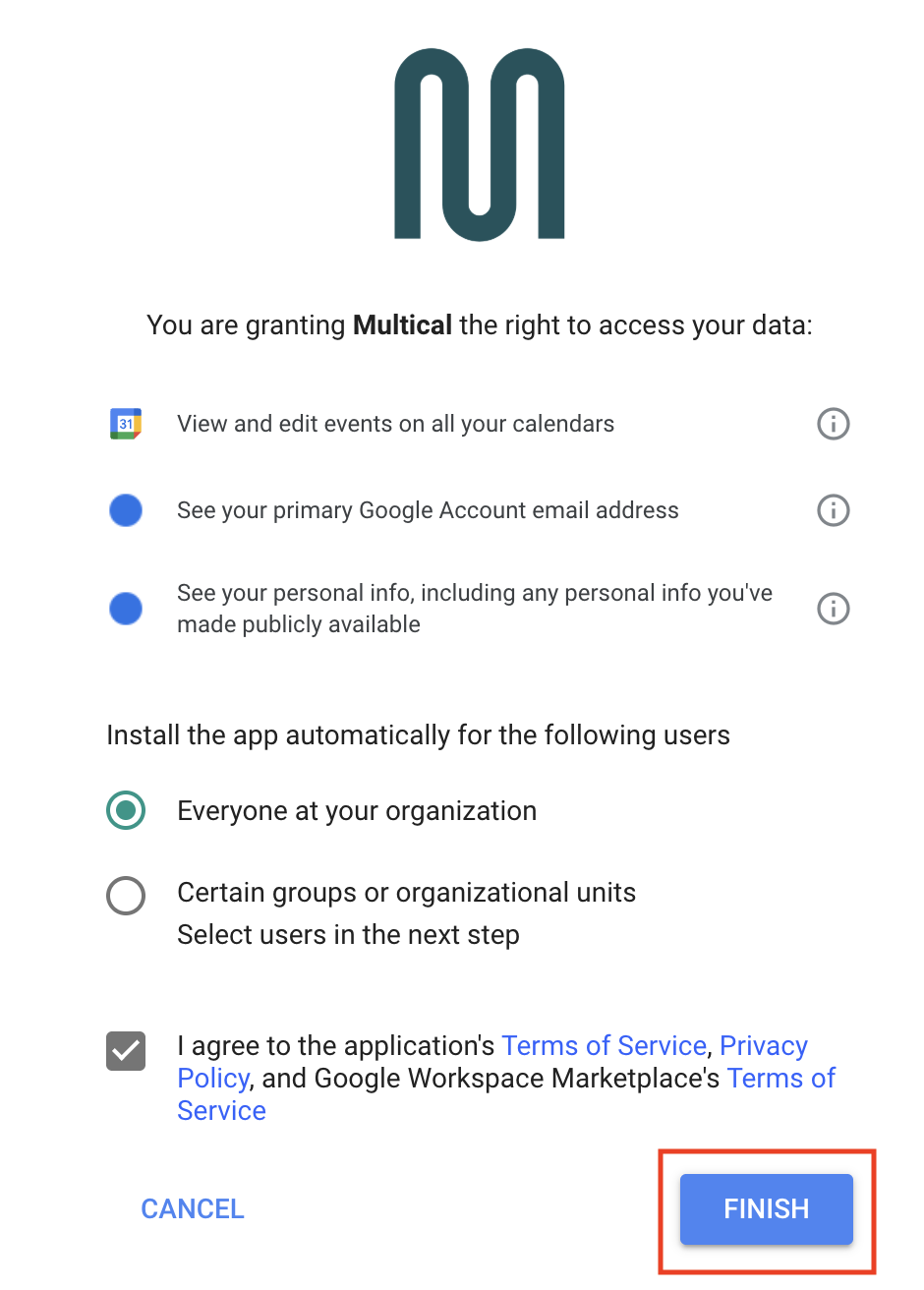
Permissions Multical requests
Permission | Reason |
|---|---|
View and edit events on all calendars | To read and sync events across calendars |
See your primary Google Account email address | To identify the connected account by email |
Offline access | To keep calendars synced in the background without requiring you to re-authorize |
Multical does not access Gmail, Google Drive, or any other Google data. You can read more about permissions and security here.
Frequently asked questions
Do I need to sign up for Multical to approve it?
No. Completing the steps above is all that's needed.
Will approving this give Multical access to everyone's calendar?
No. Each individual user must still connect their own calendar by signing in to Multical and authorizing it themselves. Approving the app simply allows users in your organization to do that.
Can I revoke access later?
Yes. Go to Google Admin Console → Security → API controls → Manage Third-Party App Access, find Multical, and remove it.
Steps
Make sure you are signed in to Google with your admin account.
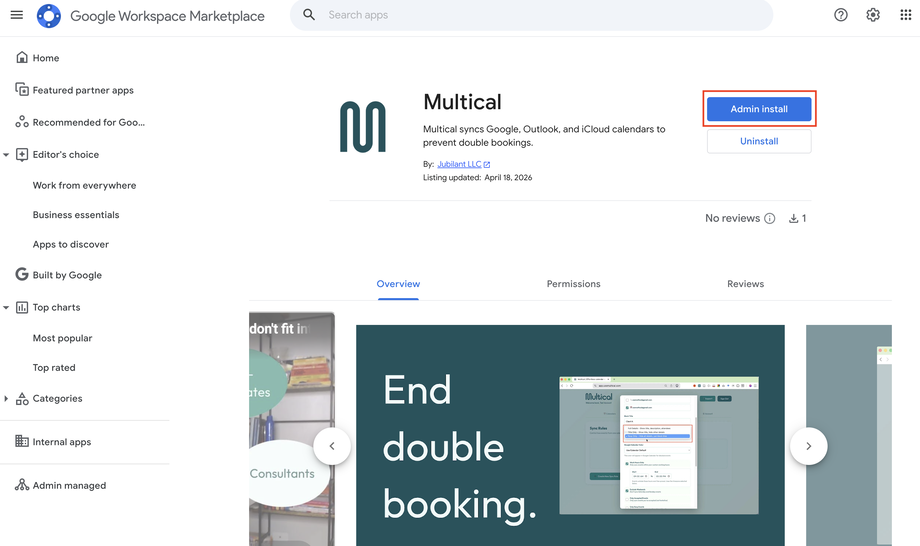
Visit the Multical listing on the Google Workspace Marketplace:
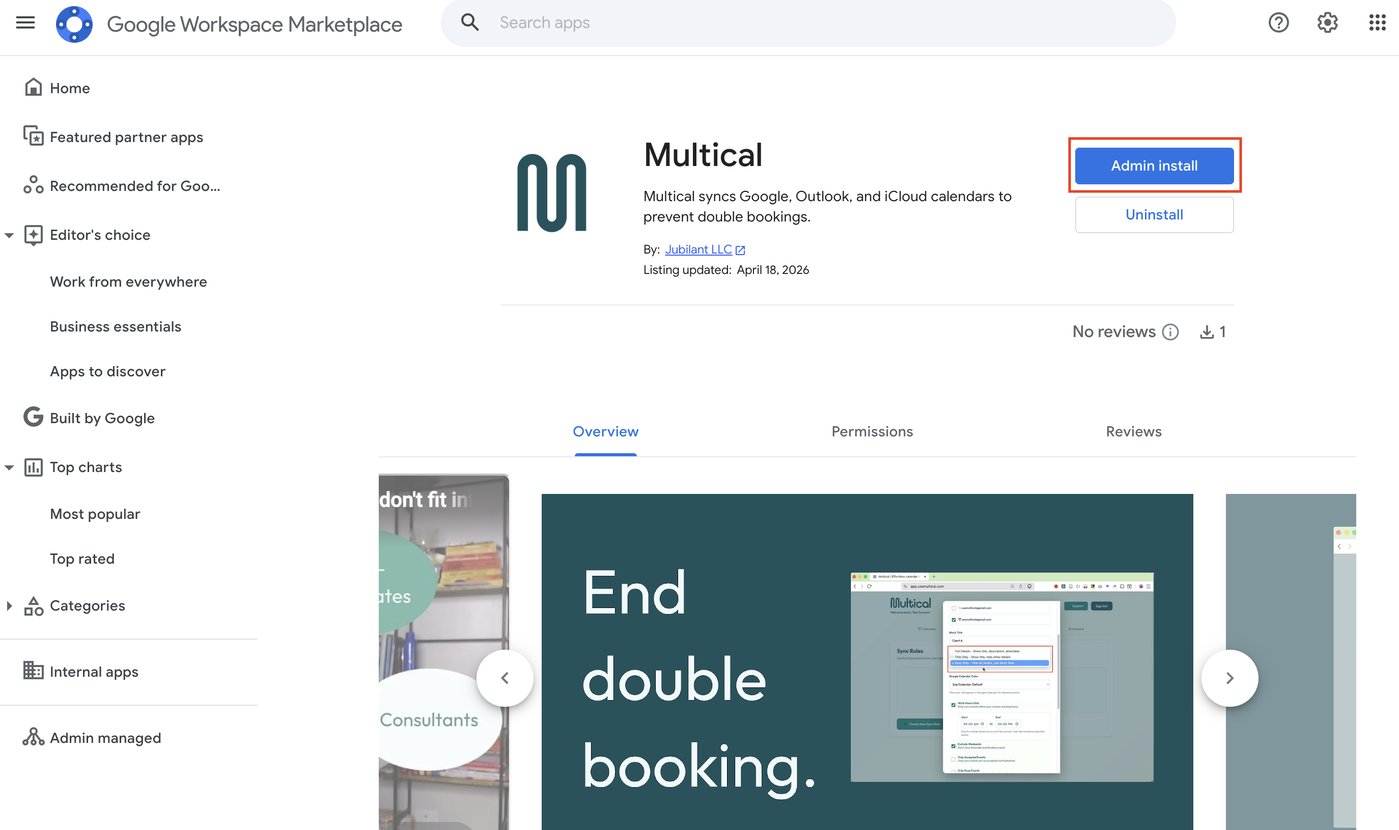
https://workspace.google.com/marketplace/app/multical/703066352040Click Admin Install
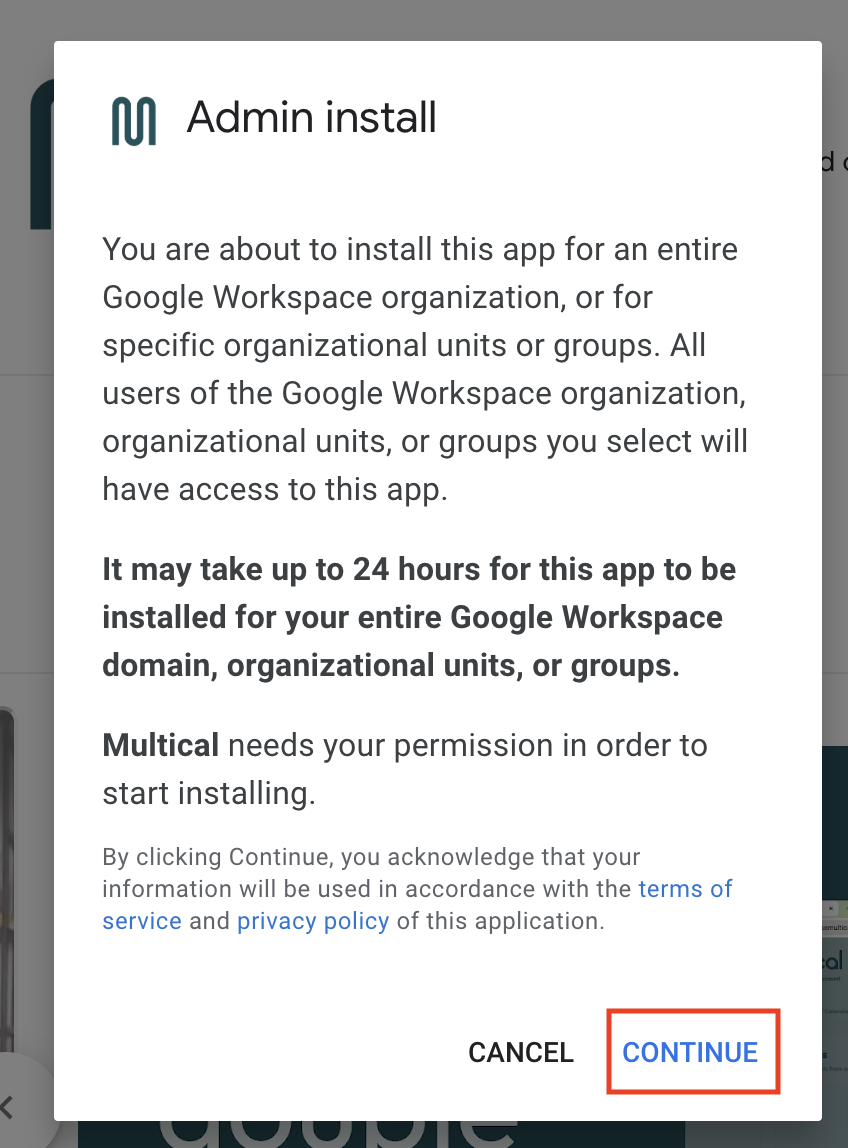
Review the permissions and click Continue, then Finish.
Your team members can now choose to connect their Google Calendars.
Still having trouble?
Contact us at [email protected], and we'll help you through it.